Using GPS for the most accurate time possible on a Mac
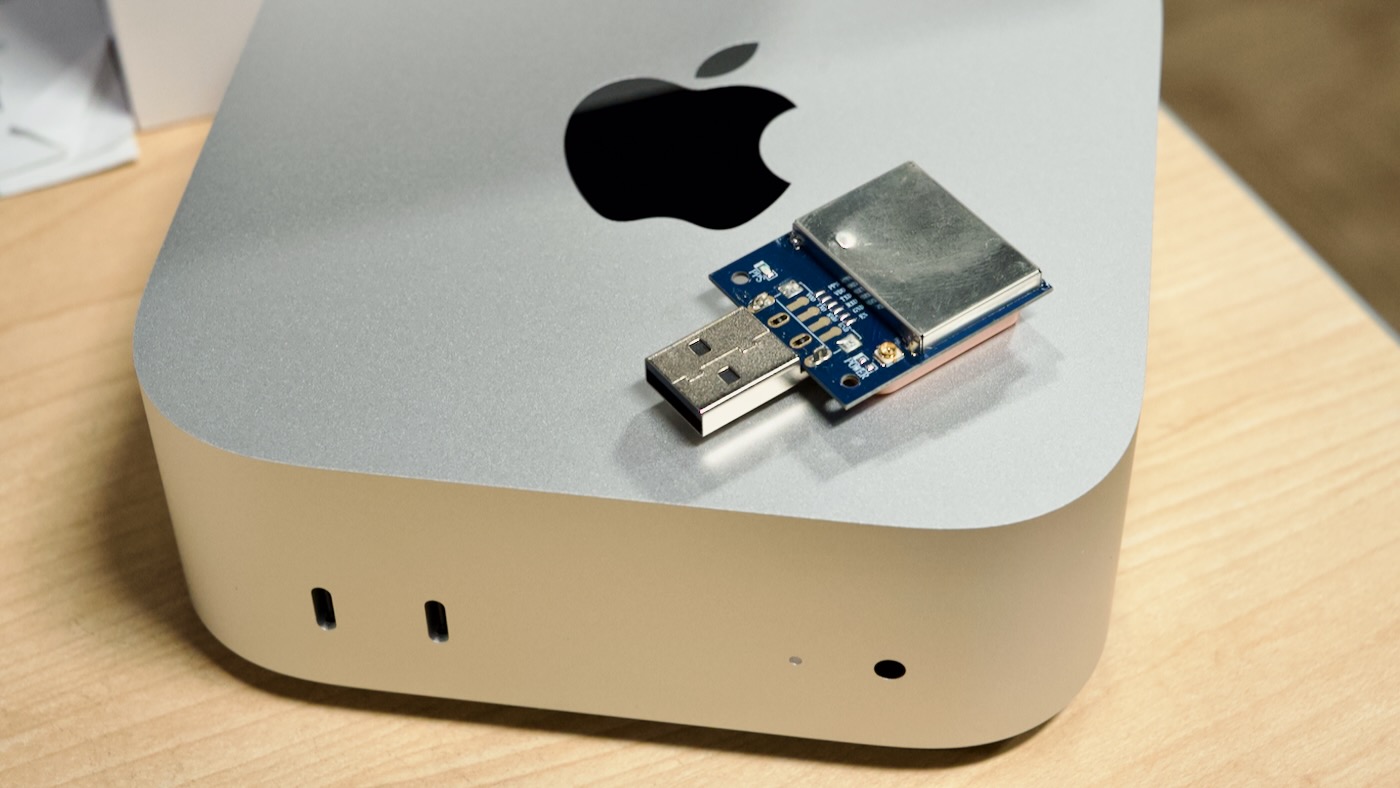
I'm deep in the rabbit hole of all things time and timing. One step on any modern horologist's journey is GPS time.
NIST just put NIST-F4 online, accurate to within 2.2e-16 ppm (that's 0.00000000000000022 seconds. The clock is described in Metrologia thusly:
The fountain uses optical molasses to laser cool a cloud of cesium atoms and launch it vertically in a fountain geometry.
Imagine having access to an "optical molasses" clock, plus millions of dollars of other atomic clocks, for a one-time $10 or $20 fee—well, that's GPS in a nutshell. And today there are multiple PNT (Positioning, Navigation, and Timing) constellations—not just the GPS constellation run by the US—which we refer to as 'GNSS' constellations.
On my Raspberry Pi, I can buy this $17 GPS module, plug it into a USB port, solder a jumper from the PPS pin on the module to one of the Pi's GPIO pins (Austin's Nerdy Things has a great guide for this), and have a timing reference on my local network accurate to the microsecond range.
With a better GPS module, I can get that down to nanoseconds. That's on a $45 Raspberry Pi, though.
Surely, my $500 Mac can do better? And if not that, maybe a $5000 Mac Pro?
Well, no. At least, not directly. Apple's Mach kernel that runs macOS doesn't expose PPS support, there are no GPIO pins you can use to 'discipline' the internal system clock, and even PTP (a technology that could synchronize clocks over Ethernet) is a bit obtuse, as it's only available through certain apps and with special expensive external network hardware.
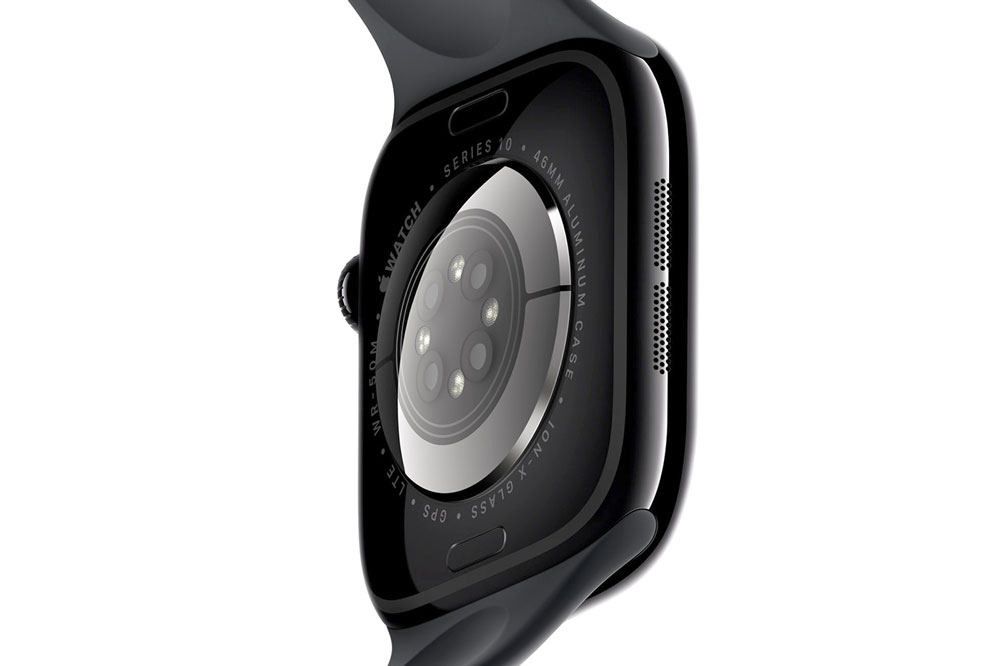
Ironically, the Apple Watch has more timing chops than modern Macs. The GPS models can set time (and get position data) directly from GPS, and they're accurate to at least tens of nanoseconds. On macOS, no matter how amazing your M4 Pro Super Max Ultra is... it will never have as accurate a time. Even with the 'hacks' I'll show you in this post.
And if you would like to watch a video with a full demonstration of the technique I cover in the rest of this post... I have you covered:
GPS on a Mac
To be clear, GPS works on a Mac, but the nanoseconds-accurate PPS signal that most modern GPS modules provide cannot be accessed on a Mac. At least not unless you're writing custom USB drivers and can route and emulate PPS over RS232 through one of the Mac's USB ports (and even then...)!
You can run GPSd or even pygpsclient on your Mac. I demonstrated plugging in a $10 USB GPS module using the U-blox 7, and doing that, you can get extremely precise positioning information.
Included with that is an NMEA line printed over the serial bus every second like:
<NMEA(GNRMC, time=02:38:31, status=A, lat=[REDACTED], NS=N, lon=[REDACTED], EW=W, spd=0.041, cog=, date=2025-04-29, mv=, mvEW=, posMode=A, navStatus=V)>
This line contains the exact time in UTC (which is actually a derivative of the timing signal coming through GPS, which is 19 seconds offset from TAI, which I don't have time to explain in this post).
I tested another GPS module today, this time a cheap $17 module using the U-blox UBX-M8130. As it says in the description, it's "Better than VK-172", so who am I to argue?
But importantly, like the USB VK-172 I tested previously, you can plug it into your Mac, then find the USB serial port macOS opens up to the device:
$ ls /dev/tty.usb*
/dev/tty.usbmodem111101
Most of these GPS modules output data at 9600 baud in plain text, so could use a utility like minicom or an app like CoolTerm to observe the NMEA sentences it generates every second.
Direct Time Setting
Technically, you could write a script that listens to /dev/tty.usbmodem111101, and sets macOS's clock every second, using the date command (setting time requires sudo or superuser privileges):
# 2-digits for each option: `date {month}{day}{hour}{minute}{year}.{second}`
# Example below for: April 29, 10:02 p.m., 2025, 10th second

$ sudo date 0429100225.10
Tue Apr 29 10:02:10 CDT 2025

# Note: You can re-set the system time from NTP using sntp:
$ sudo sntp -sS time.apple.com
But running a script to do this would be annoying, since you have to maintain code to parse NMEA sentences, handle dropouts of GPS signals, adjust the UTC timestamp to your local timezone, and properly reformat the date string from your GPS. Fragile, not to mention it can be surprisingly hard to daemonize scripts on macOS so they run at startup and restart if something breaks (or maybe I'm just terrible at it!).
Luckily, there are two ways you can run Chrony on your Mac. Chrony is timing software that's ubiquitous in the Linux world that does all those things for you.
Your own local macOS time server
Running Chrony on your Mac with a GPS for time input is possible with one of two methods: running it directly via ChronyControl and GPSDConfig, or running it manually in a Docker container (running Linux on your Mac, passing through the USB GPS module).
ChronyControl + GPSDConfig

The first way runs native inside macOS, and it uses a couple tools written by developer Bryan Christianson. Both tools wrap GPS and timing applications in a native macOS GUI. They also manage launching the necessary timing apps in the background.
This guide assumes you already have one of the aforementioned GPS modules plugged into a USB port on your Mac (ideally directly, not through a hub).
- Install GPSd:
brew install gpsd(using Homebrew) - For convenience, symlinkgpsdinto a nicer spot:sudo ln -s /opt/homebrew/opt/gpsd/sbin/gpsd /usr/local/bin/gpsd - Download and unzip ChronyControl and GPSD Config
- Launch ChronyControl, and select 'Install chrony', then 'Start chronyd' from the Action menu1 - After a few seconds, it should display an offset and some Chrony stats. - Click on 'Live Tracking' to see a fancy graph with stats over time - (Note: At this point, ChronyControl will automatically disable the 'Set date and time automatically' setting in macOS System Preferences, disabling the built-in NTP service)
- Start GPSd in the background:
gpsd /dev/tty.usbmodem111101 -p- To observe GPS data in the command line, you can runcgps- If you need to stop GPSd, run:pkill gpsd - Launch GPSD Config, and enter
/dev/tty.usbmodem111101in the 'options' field. - Click 'Path' next togpsdto choose thegpsdlocation (browse to/usr/local/binand selectgpsd) - Click 'Install Boot Files' and enter your password when prompted - Click 'Start gpsd' to start gpsd - Copy the
Refclockfield contents out of GPSD Config, and switch over to ChronyControl - In ChronyControl, click the Gear icon to bring up the
show_chrony.confconfig file - Paste theRefclockfield contents into the file in the first open space. Click 'Check Syntax', then 'Install Config'. - After Chrony restarts, it should start using GPS timing data, as long as your GPS module has a fix - If you'd like everything to run at login: - Open ChronyControl menu > 'Settings', and check 'Launch at Login' - Open GPSD Config menu > 'Settings', and check 'Launch at Login'
To confirm whether GPS data is being used by Chrony, switch the chronyc selection to sources, or in a Terminal window, run the command chronyc sources -v, which gives us output like below:
$ chronyc sources -v

  .-- Source mode  '^' = server, '=' = peer, '#' = local clock.
 / .- Source state '*' = current best, '+' = combined, '-' = not combined,
| /             'x' = may be in error, '~' = too variable, '?' = unusable.
||                                                 .- xxxx [ yyyy ] +/- zzzz
||      Reachability register (octal) -.           |  xxxx = adjusted offset,
||      Log2(Polling interval) --.      |          |  yyyy = measured offset,
||                                \     |          |  zzzz = estimated error.
||                                 |    |           \
MS Name/IP address         Stratum Poll Reach LastRx Last sample
===============================================================================
#? GPS                           0   4     0     -     +0ns[   +0ns] +/-    0ns
^- s2-a.time.mci1.us.rozint>     2   6    17    57   -868us[ -868us] +/-   21ms
^* rn-02.koehn.com               2   6    17    57  -2888us[-1002us] +/-   18ms
^- b09-07.sysnet.ucsd.edu        2   6    17    57  -4396us[-4396us] +/-   49ms
^+ h134-215-155-177.mdtnwi.>     2   6    17    57  +4444us[+6331us] +/-   23ms
In this case, the #? next to GPS indicates GPS data is not being used.
In my case, I just needed to make sure I restarted gpsd once more (using the 'Restart gpsd' button in GPSD Config), and then after a few seconds, I saw the GPS source giving valid data in ChronyControl:
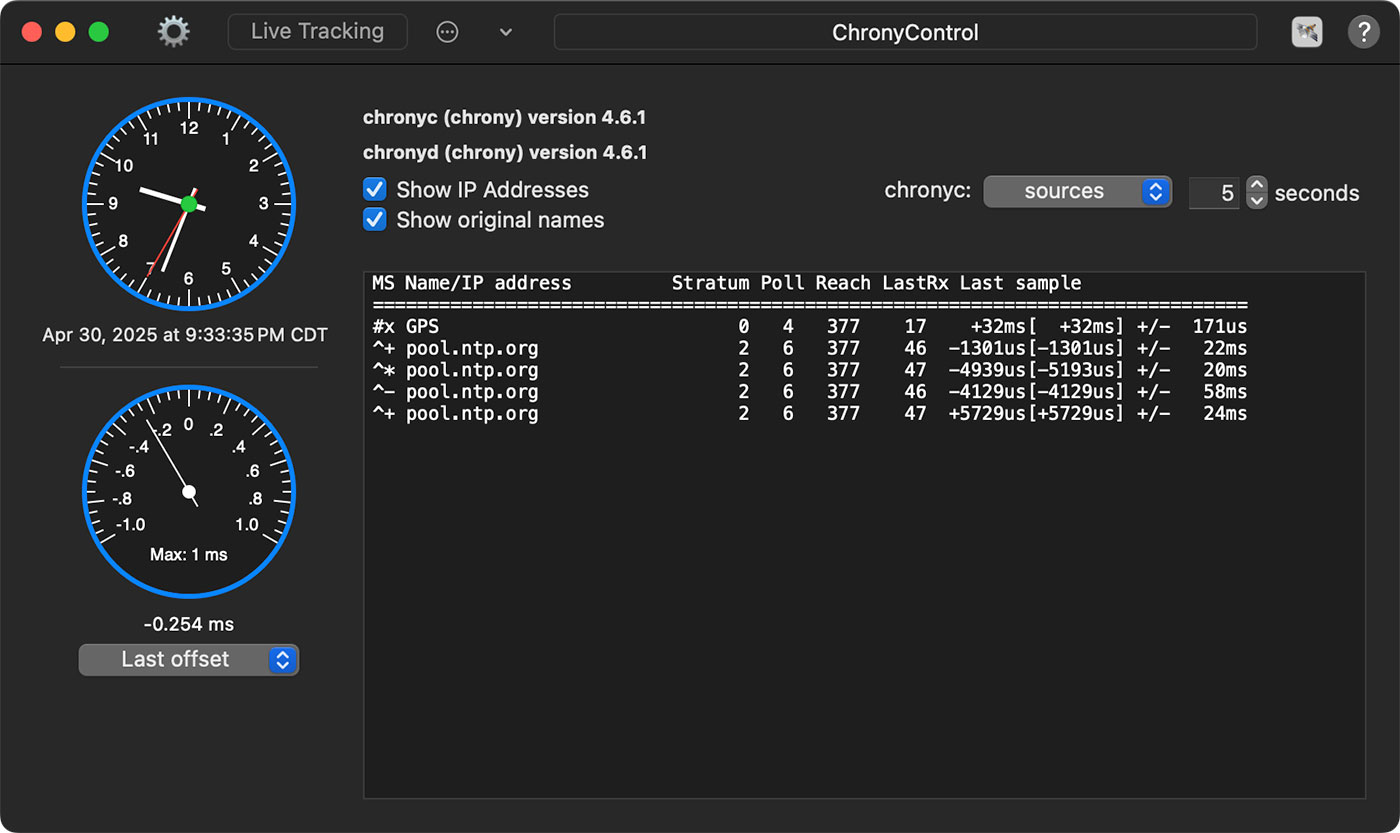
And here, GPS is still marked as x, meaning Chrony thinks it "may be in error". And rightly so—without the PPS signal indicating the start of the second, the chain from the GPS module through USB adds timing instability. The default 9600 baud data rate for NMEA messages doesn't help any, either.
Because of that, the NTP timing sources—even though they may be off by a few more milliseconds—are more consistent than the GPS module timing over USB.
If you want to simulate being in a place with no Internet, you can disable NTP time sources by editing the show_chrony.conf file again, adding a # before the pool pool.ntp.org iburst line (commenting it out), then clicking Check Syntax and Install Config.
Restart gpsd afer doing that, and then monitor chronyc sources.
After a few minutes, assuming your GPS module has a 3D fix, you should see something like:
MS Name/IP address         Stratum Poll Reach LastRx Last sample
===============================================================================
#* GPS                           0   4    37    15  +1682us[+1913us] +/-  389us
I was monitoring the GPS timing for a while, it seemed to still be around the same realm of accuracy, but with a lot more jitter, as evidenced by the 'Live Tracking' graph in ChronyControl:
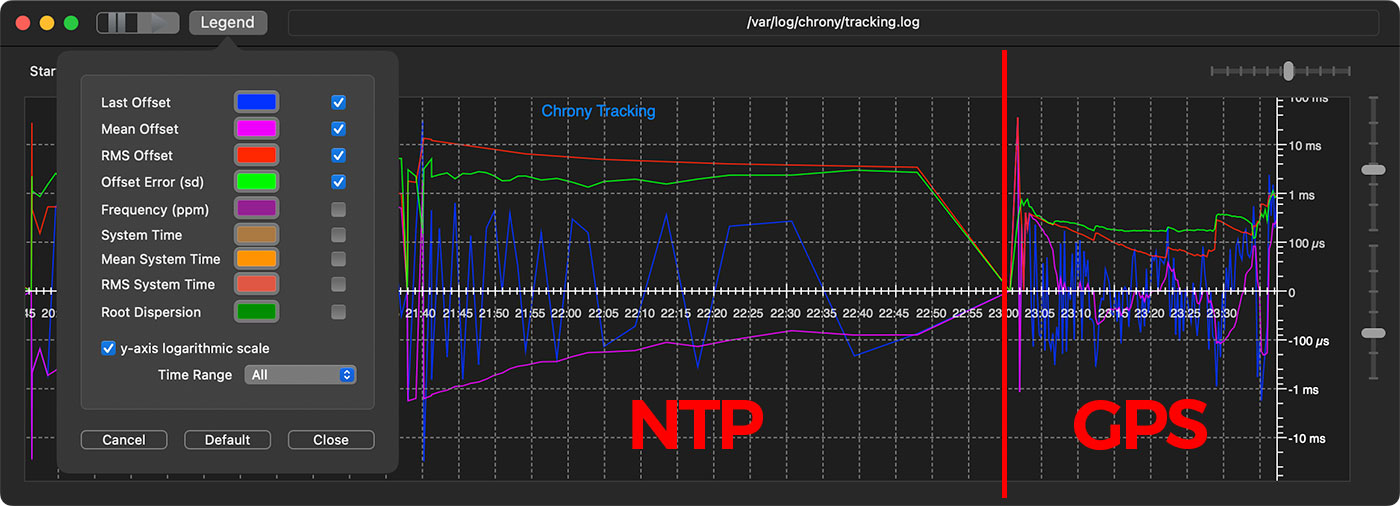
It's not bad though; the time was still accurate to within 1ms at least. And this answer on StackExchange seems to also conclude that GPS without PPS is about as accurate as modern NTP over a reliable Internet connection.
If you can get a better GPS fix, increase the data rate to the maximum your GPS module supports (say, 115200 baud), and have a Mac running little else with the GPS module plugged directly a more or less idle USB port/bus... then it might give you time more consistent than NTP over long periods.
I think the two use cases for a Mac with GPS time are:
- You're off-grid / away from the Internet (so no NTP) but still need good time, and for some reason you have a Mac and no Raspberry Pi on hand.
- You want to run your Mac as a local NTP time server.
In the latter case, ChronyControl sets up Chrony to act as a LAN NTP server by default. To verify this is working, try querying the time served up by the Mac from another Linux machine on the network (on Debian, this requires sudo apt install ntpdate to work):
$ sudo ntpdate -q 10.0.100.15
server 10.0.100.15, stratum 1, offset 0.019708, delay 0.02626
30 Apr 23:48:46 ntpdate[20275]: adjust time server 10.0.100.15 offset 0.019708 sec
10.0.100.15 is the IP address of my Mac mini running ChronyControl, and it looks like it responded to the query just fine.
The developer who wrote these utilities even has this insanely hacky but brilliant writeup on how he set up an old Power Mac G4 as a sub-millisecond GPS-disciplined time server! It's probably not running anymore, but now it has me wondering—if I could get Linux going on one of my 'vintage' Macs, could I hack in PPS support as well...?
If you wind up using one of these apps by Bryan Christianson, please consider supporting his work through a donation!
Docker NTP/Chrony Container

I haven't yet built out the Docker/containerized approach, and I figure the USB device passthrough could be a sticking point, but at least one forum thread I found from a few years ago (which I can't find now) said it was possible. Basically:
- Run a container like cturra/docker-ntp (which runs Chrony), using a configuration pointing at the USB GPS device as the main timing reference (with Internet NTP servers as secondary time sources).
- Point your macOS 'Time Server' setting to
localhost(or the IP or hostname of your Mac) - Profit!
Honestly, I'm torn on which approach is better. ChronyControl + GPSDConfig means you have more services running on your Mac natively, and they can be hard to daemonize and keep updated over long time frames. Apple notoriously breaks useful software like this that's a bit off the beaten path every time there's a major OS upgrade. And when that happens, you have to wait for a developer like Bryan to update his apps before they'll work again.
But daemonizing Docker containers on a Mac (to run at startup and stay running) can also be annoying.
Is it any more accurate?
But here's the rub:
All that work, and all that uncertainty, and there's still no easy way to verify how accurate the time is on your Mac (on the nanosecond level) via something like a PPS output. Nor does Apple expose any public mechanism in the Mach kernel for precise timing measurements.
It's a bit annoying, too, because surely good sync between Macs and A/V gear—most notably their own Vision Pro headsets—requires precise time, so it must be measurable somewhere!
And some audio software can maintain precise sync with special network drivers (useful when a Mac is part of a digital audio network with protocols like Ravenna or AES67), but there's little in the way of accessible tooling for precise timing verification on Macs or anything beyond 1ms2 :(
So in the end... maybe just stick with the built-in NTP services unless your Mac is running off-grid!
Note that ChronyControl takes over setting the system clock, so you no longer use macOS's built-in NTP services (the 'Set date and time automatically' option in the Date & Time System Preference). You can enable both at the same time, but it would be silly to have two services trying to discipline the system clock at the same time! ↩︎
GitHub user jclark created a repo mac-pps demonstrating ~2µs synchronization using an audio input over USB for PPS detection. Maybe there's some more margin for improvement hacking things together there! ↩︎
Comments