Mounting an ext4 linux USB drive on macOS in 2024
I recently pulled a SATA hard drive out of a Linux box that I wanted to grab some files off of. I only had my Mac on hand, and I had a USB 3.0 to SATA hard drive adapter at the ready.
But when I plugged in the hard drive, macOS said it couldn't recognize the disk.

Makes sense, because macOS includes support for Apple's filesystems, not Linux (or even NTFS, Windows' preferred filesystem). There are commercial solutions you can buy, like Paragon Software's extFS for Mac, but that costs $39, and I don't want to deal with the licensing issues that may exist there if I just want to grab a few files off one hard drive.
Luckily, there are some open source libraries that allow at least read only access to ext4-formatted disks on macOS. Let's install them and use them to mount the drive:
First, install macfuse, using homebrew:
brew install --cask macfuse
This will likely ask you for your sudo password, as it needs to install a kernel extension.
After that's done, you'll need to manually clone and compile ext4fuse:
git clone https://github.com/gerard/ext4fuse.git && cd "$(basename "$_" .git)"
make
Then create a mount point and mount your external hard drive. If you don't know which drive is the external drive, use diskutil list and figure out which one it is—in my case it was /dev/disk5 (external, physical):
$ diskutil list
/dev/disk5 (external, physical):
   #:                       TYPE NAME                    SIZE       IDENTIFIER
   0:      GUID_partition_scheme                        *20.0 TB    disk5
   1:       Microsoft Basic Data                         20.0 TB    disk5s1
Next, create a mount point for the disk, and then attempt mounting it there:
mkdir ~/ext4_mount
sudo ./ext4fuse /dev/disk5s1 ~/ext4_mount -o allow_other
This will pop a couple warnings like "System Extension Blocked":

Click 'Open System Preferences', then click 'Allow' where it asks if you want to allow the system extension to run:
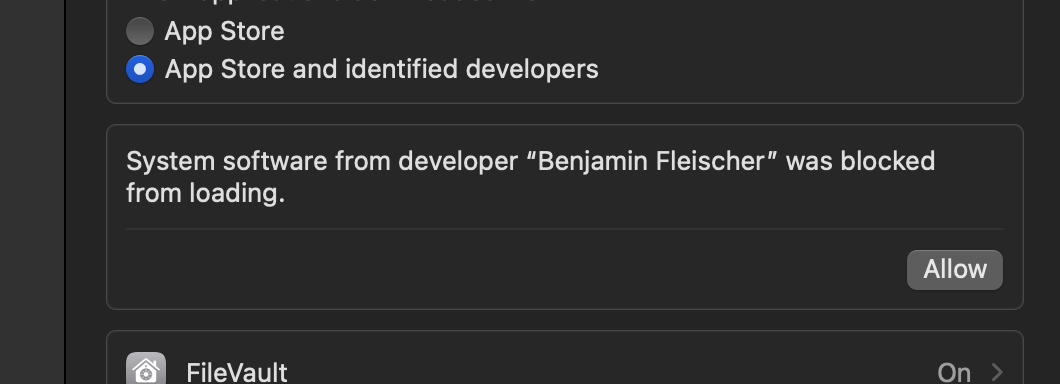
This will prompt you to reboot the computer — that now, and once you're back up and running, try mounting the disk again:
sudo ./ext4fuse /dev/disk5s1 ~/ext4_mount -o allow_other
This should work, and you'll see a new disk mounted, like "macFUSE Volume 0 (ext4fuse)". Open that up, and browse around, and you should be able to read the contents of the disk now.
When you're finished, run:
sudo umount ~/ext4_mount
And unmount the disk.
Unfortunately, this doesn't seem to work with every partition I've thrown at it. Sometimes it works, sometimes it shows up as an empty volume... not sure why.
The better option would be to have a separate Linux computer (even a little Raspberry Pi!)—plug the drive in there, then if you need the files on your Mac, create a Samba share and access the files over your network.
Comments