I replaced my MacBook Pro with a Raspberry Pi 4 8GB for a Day
Earlier this week, as part of my work doing a more complete review of the Raspberry Pi 4 (coming soon!), I decided I'd go all-in and spend one entire day working entirely (or at least as much as possible) from a Raspberry Pi.
And not just doing some remote coding sessions or writing a blog post—that's easy to do on a Chromebook, a tablet, or any cheap old laptop—but trying to do all the things I do in a given day, like:
- Browse Twitter using a dedicated app
- Use Slack (you laugh, but Slack uses more memory than most of the other apps I'm running at any given time—combined!)
- Record and edit clips of audio and video
- Work on some infrastructure automation with Docker, Ansible, and Kubernetes
So as with any project of this scope, I created a GitHub repository, pi-dev-playbook, to track my work—and, to be able to immediately replicate my development environment on a new Pi, should the need arise.
Preliminary spoiler / tl;dr: I ended up giving up after one day. I was hoping to go a few days, but the small pain points (in almost every area I explored) added up to a more frustrating experience using the Pi as a main computer replacement than I expected. It's great for some use cases, but not great for mine. More detail later.
Video: Pi 4 a Day
I recorded this YouTube video, vlog-style, to cover my initial thoughts the day-of:
Step 1: Plug in
The first task of the day was to unplug my MacBook Pro from my CalDigit TS3 Plus Thunderbolt 3 hub, and then figure out how to get everything I needed plugged into my Pi.
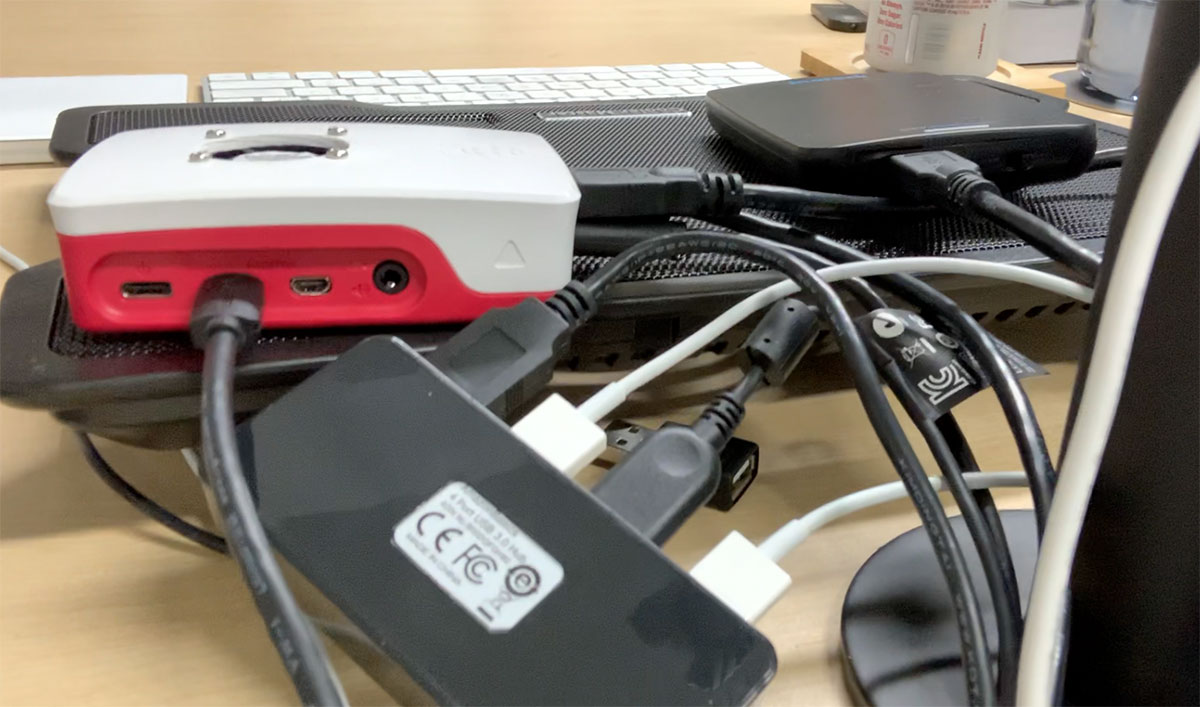
I plugged an AmazonBasics powered USB 3.0 hub into the Pi. I chose a powered hub to prevent the Pi's internal bus from having to supply power to all my devices, which included:
- A Kensington 240 GB SSD, in an Inateck USB 3.0 SATA enclosure. I used this as the boot volume following the directions I mentioned in my previous blog post, I'm booting my Raspberry Pi 4 from a USB SSD.
- Apple Magic Keyboard.
- Apple Magic Trackpad.
- Behringer U-Phoria USB 3.0 Audio interface, which lets me record my EV RE320 microphone.
- Logitech C920 webcam.
You don't really realize how much of a mess of cables you end up with when switching computers—or how good you have it if you've jumped straight into the ThunderBolt or USB-C #dongleLife. Moving all these connections resulted in quite a rat's nest:
I plugged in the official Pi 4 USB-C power supply, and a micro HDMI to HDMI adapter, which went into my LG 4K 27" monitor, and waited for the Pi to boot!
Step 2: Re-orientation
The first thing I did—which took almost 30 minutes—was try to figure out how to get 4K (at 30 Hz—the Pi can't output 60 Hz over its HDMI connection) working with a consistent font size across all the applications and system controls.
The settings in the Appearance preferences seemed to apply to some window chrome and buttons, but not internally in applications. So, for example, the File Manager's main window had readable text after I increased the font size at 4K resolution, but in order to make filenames and other listings readable, I had to go into the File Manager's settings and increase the font size there.
Same for Terminal. And Chromium. And... you get the idea.
So, next, I turned on 'Pixel Doubling', which basically runs the Pi at 4K, but with most things rendered at 1080p, with every pixel doubled in both the X and Y dimension.
This is okay if you want to play games (what few may run at 4K) and watch videos (with some slight tearing at 4K) in glorious 4K resolution, while letting other things on the computer render at a more pleasantly-legible 1080p resolution.
In the end, after futzing with settings for a long while, I decided to stick to native 1080p resolution, even though it made my monitor feel slightly old and outdated (compared to the crisp 'Retina' 4K I'm used to from the Mac), because it was:
- Less taxing on the Pi's GPU (so there was less tearing)
- It allowed the Pi's GPU to apply anti-aliasing, which is easier on my eyes than the blocky look of Pixel-Doubled-1080p.
- It allowed a 60 Hz refresh rate, which made my eyes more comfortable whenever I was scrolling or watching 60fps video.
Throughout this time, I also had to ditch using my Apple Magic Trackpad, because even after tweaking a number of settings (like enabling NaturalScrolling and changing the cursor acceleration), the tracking never felt very precise. It kind of felt like the Trackpad was 'drunk'.
I plugged it into the Pi directly, and still had the issue. So I switched to an old Logitech mouse I had in the office, which worked better (but wow, do I hate scroll wheels after using trackpads for years!).
Step 3: It's all about the workflow (and apps)
At this point, as I was starting to get more comfortable in the Pi's stark UI (LXDE), I started trying to actually do some work.
I spent a few minutes trying to discern why it was so darn hard to type an em dash in one of my GitHub issues, when Googling found me:
Hold down one of the Alt keys and type on the numeric keypad: 0150 for an en dash or 0151 for an em dash.
Oh... so that's why most people don't know the difference between an em and en-dash—it's so hard to type one, much easier to just put a few dashes in --- ... Anyways, on my Mac, I'm used to Shift + Option + dash for em, or Option + dash for en, but we're getting off the point.
I started searching for replacements for the apps I use on a daily basis at this point.
The search had, shall we say, mixed results. Chromium is a decent browser, and it comes with the Pi. I had no real qualms there, besides the fact that Google probably still finds ways to track my every move with it.
And I found VSCodium to be a decent (if slightly overweight, IMO) code editor to replace my preferred editor, Sublime Text 3. Note that Sublime Text 3 does have a Linux release, just not for ARM64. Maybe that will change someday.
In fact, that's a theme I ran into a lot—many apps I use regularly have a full-fledged Linux version, but precious few would compile on ARM64.
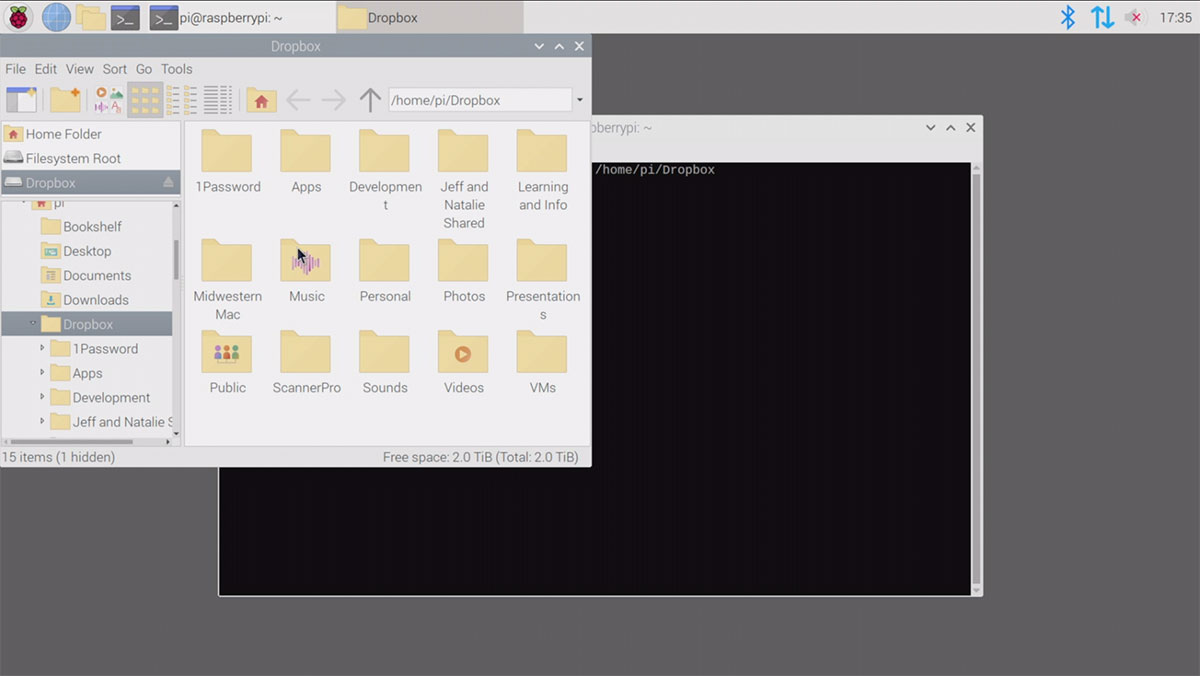
Anyways, I tried (and failed) to compile Dropbox on the Pi OS beta, so I instead installed Rclone, which I use for so many different purposes now I should probably donate towards making it a sustainable project—so I did!.
For email, Evolution was fairly lightweight and I liked that it was more a trimmed-down app like macOS Mail, without all kinds of fancy doodads that get in the way of me just managing email.
The Pi OS Terminal is an adequate (if even more sparsely-featured) CLI utility, though I missed the ability to easily manage profiles and the environment via the Terminal preferences itself.
And Pidgin works great on the Pi and I've always switched between it and LimeChat for IRC communications.
At this point, I could already do a bunch of my open source and infra work without much hindrance, outside of not being able to find pre-built arm64 Docker images for some of my projects.
However, from this point forward, I started bumping into issue after issue:
Step 4: You can't have it
I realized that there are a ton of little things that I do on my Mac that I either could not do on the Pi, or could do but in a much less pleasant way.
For example, I use Reeder to quickly browse through a few dozen RSS feeds I follow each morning... and having to use a web UI for that purpose was off-putting. I couldn't find any feed reader that works with Feedly that would compile on ARM64 :(
Also, love it or hate it, I use Twitter heavily. I found and could install Cawbird, which—credit to the maintainers—is a wholly adequate Twitter app. But I had two problems with it:
- I kept running into transient errors almost the whole time I used it
- I had to install it with Snap. Which meant I had to install
snapd, then reboot the Pi.
I won't dig into Snap here, but I guess one point I should make is that for almost every piece of software I wanted to use, I had to spend a lot of time just trying to find any that would work on Linux—then narrowing that to 'on Linux ARM64'. And then I had to usually spend a few minutes compiling it from source, placing my own shortcuts on the system (so I wouldn't have to open a Terminal every time I wanted to check Twitter), etc.
All of these issues (4K difficulties, having to compile apps, not finding apps) are exacerbated by the fact that the Pi runs on ARM, but it is still a problem in the wider Linux ecosystem.
I am definitely not denigrating the great work done by countless open source software developers who build apps for Linux. Not only are they typically not compensated fairly for the amount of great work they do, they do not have the benefit of a corporation assisting them with great development resources, hardware to test on, etc. It's amazing to me that software like GIMP, Blender, Cawbird, et all have the staying power they've had over the past decade or more.
But until we can find ways to entice people and teams who have the time and resources to build more usable and accessible software on Linux, it's never going to be the fabled 'year of the Linux Desktop'.
Step 5: Multimedia is hard
As the day wore on, I thought I'd see if I could do some of the A/V work I needed to do to produce the video linked earlier in this post on the Pi. There are some open source editors like Kdenlive and OpenShot, and of course there are venerable stalwarts in the open source A/V realm like VLC and FFmpeg (both pre-installed on the Pi).
But unlike iMovie, or even more complex apps like Final Cut Pro X or Adobe Premiere Pro, these apps have a long way to go before they are 'pick up and go' usable. I didn't get the time to review editing suites fully because I was hindered at the beginning just trying to get my audio and video devices working correctly.
I opened Zoom, and it recognized my Logitech C920 webcam as a video source—but I couldn't select its microphone as an audio source. I saw the Behringer USB audio interface but when I selected it, there was no sound.
I tried BlueJeans, and it didn't see either the webcam or any microphone. The only option was to 'join by phone'. When I clicked that, the BlueJeans interface locked up and I had to refresh the interface!
Google Hangouts Meet recognized the webcam for video, but no audio, either.
So then I played around with aplay -l to list my audio playback devices, and the Behringer interface showed up there. And arecord also listed both the webcam and the Behringer as valid input devices:
$ arecord --list-devices
**** List of CAPTURE Hardware Devices ****
card 2: U192k [UMC202HD 192k], device 0: USB Audio [USB Audio]
  Subdevices: 1/1
  Subdevice #0: subdevice #0
card 3: C920 [HD Pro Webcam C920], device 0: USB Audio [USB Audio]
  Subdevices: 1/1
  Subdevice #0: subdevice #0
So then I spent about 30 minutes trying to record clips from my webcam, using either the webcam's mic or the Behringer interface for sound, and after many fruitless attempts came up with the two following FFmpeg incantations that worked:
# Gets sound and video from the webcam:
$ ffmpeg -ar 44100 -ac 2 -f alsa -i hw:3,0 -f v4l2 -codec:v h264 -framerate 30 -video_size 1920x1080 -itsoffset 0.5 -i /dev/video0 -copyinkf -codec:v copy -codec:a aac -ab 128k -g 10 -f mp4 test.mp4

# Sound from Behringer, video from webcam:
ffmpeg -ar 44100 -ac 2 -f alsa -acodec pcm_s32le -i hw:2,0 -f v4l2 -codec:v h264 -framerate 30 -video_size 1920x1080 -itsoffset 0.5 -i /dev/video0 -copyinkf -codec:v copy -codec:a aac -ab 128k -g 10 -f mp4 test-webcam-audio.mp4
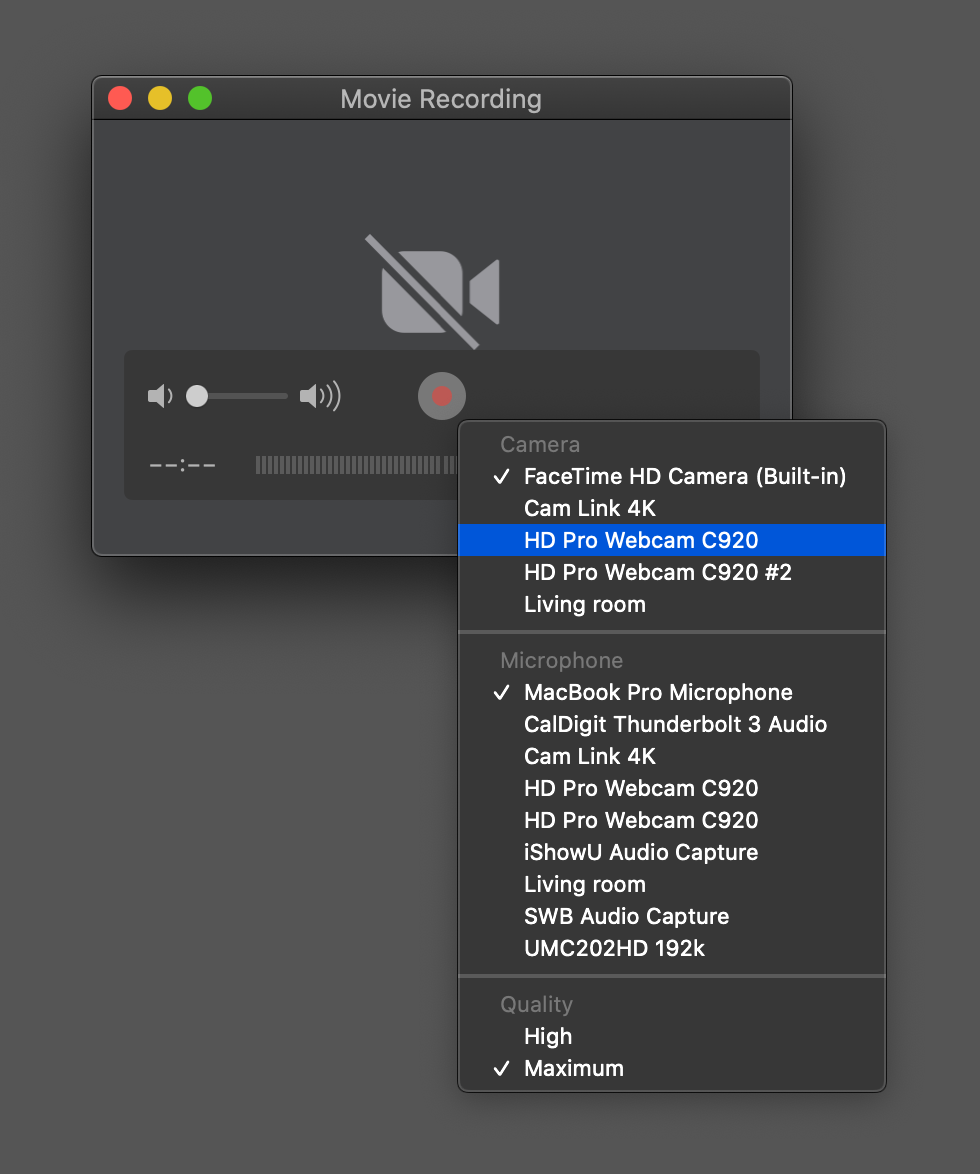
I also tried doing the same thing in VLC, but its interface is similarly inscrutable to me. I don't want to have to spend 45 minutes reading man documentation or online docs, not when I'm used to something supremely intuitive like QuickTime's capture interface:
One other note when it comes to recording video: the Pi's processor is not capable of transcoding and/or encoding at 1080p on the fly. Luckily, the Logitech C920 has built-in hardware H.264 encoding, so you can pull that stream directly from the camera and save it to disk, bypassing any rendering.
But if I tried with another camera I had that didn't have an encoder built in, the Pi could only record at 5-8 fps at 1080p, 30 fps. It recorded and saved to mp4 just fine if I set it to 480p at 30 fps.
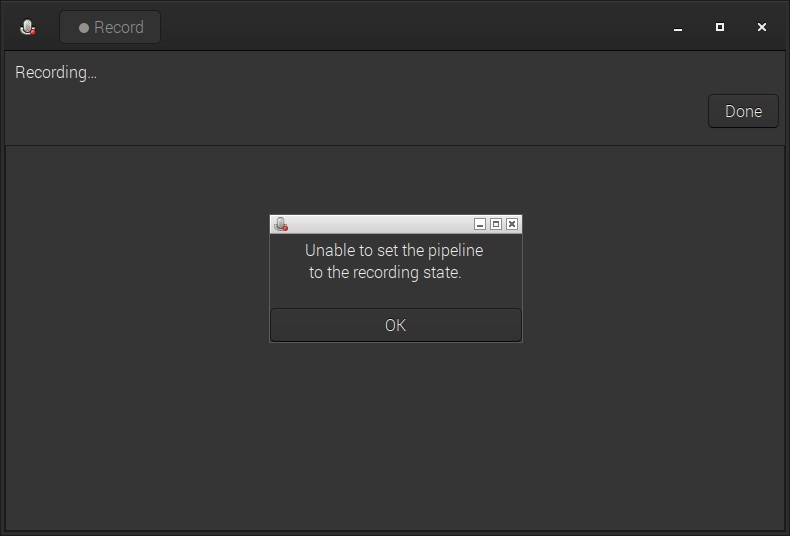
For audio-only recording, it was getting late in the day, so I tried out gnome-audio-recorder, and found that it couldn't even start a recording or find any audio source, it would just give me the error "Unable to set the pipeline to the recording state."
Conclusion
So, in summary, would I recommend the Pi 4 as a worthy general computer for anyone? Definitely no. Would I recommend it as a worthy general computer for a certain subset of computer users. Definitely yes!
If your use of the computer is more oriented towards the browser, a code editor, and the command line (e.g. backend web development, infrastructure development, writing/blogging, and the like), the Pi is perfectly adequate, and with 8GB of RAM, Chromium runs just fine, even if you have a bunch of tabs open. With a Flirc case, it's also silent.
All-in cost would be close to $250 for a decent keyboard, mouse, monitor, external SSD and the $75 Pi, which is competitive with low-end Chromebooks and older used laptops.
One use case where I am considering the Pi 4 is for my kids' first computer. The oldest is getting to the age where it would be good to start experimenting on the computer, and just like I learned the DOS CLI (in the early 1990s), he could learn on Debian, which even has a fancy GUI!
But if you spend a decent amount of time using certain apps like TweetDeck or Tweetbot, a media editing app like Final Cut Pro or iMovie, audio production apps (for things like podcasting), or heavy image editing or graphics illustration apps like those from Adobe (or equivalents like Pixelmater/Acorn, Sketch, etc.), there is nothing even close to their equivalent (unless you're willing to give up a lot on the usability and stability side) that you can currently run on the Raspberry Pi, even with the 64-bit OS.
I will likely be using Pis more and more for server applications, as their price/performance ratio and energy efficiency have gotten better with every generation, even to the point of being competitive with much more expensive computers for certain workloads. And the Pi 4 is one of the best and easy-to-get-into platforms for that.
But, sadly, I don't think this year is the 'Year of the Linux desktop'. In general, I think 'Linux on the Desktop' for a mainstream audience is always going to be 20 years away, just like nuclear fusion.
Comments