5 Gbps Ethernet on the Raspberry Pi Compute Module 4
tl;dr: I successfully got the Intel I340-T4 4x Gigabit NIC working on the Raspberry Pi Compute Module 4, and combining all the interfaces (including the internal Pi interface), I could get up to 3.06 Gbps maximum sustained throughput.
Update: I was able to boost things a bit to get 4.15 Gbps! Check out my video here: 4+ Gbps Ethernet on the Raspberry Pi Compute Module 4.
After my failure to light up a monitor with my first attempt at getting a GPU working with the Pi, I figured I'd try something a little more down-to-earth this time.
And to that end, I present to you this four-interface gigabit network card from Intel, the venerable I340-T4:
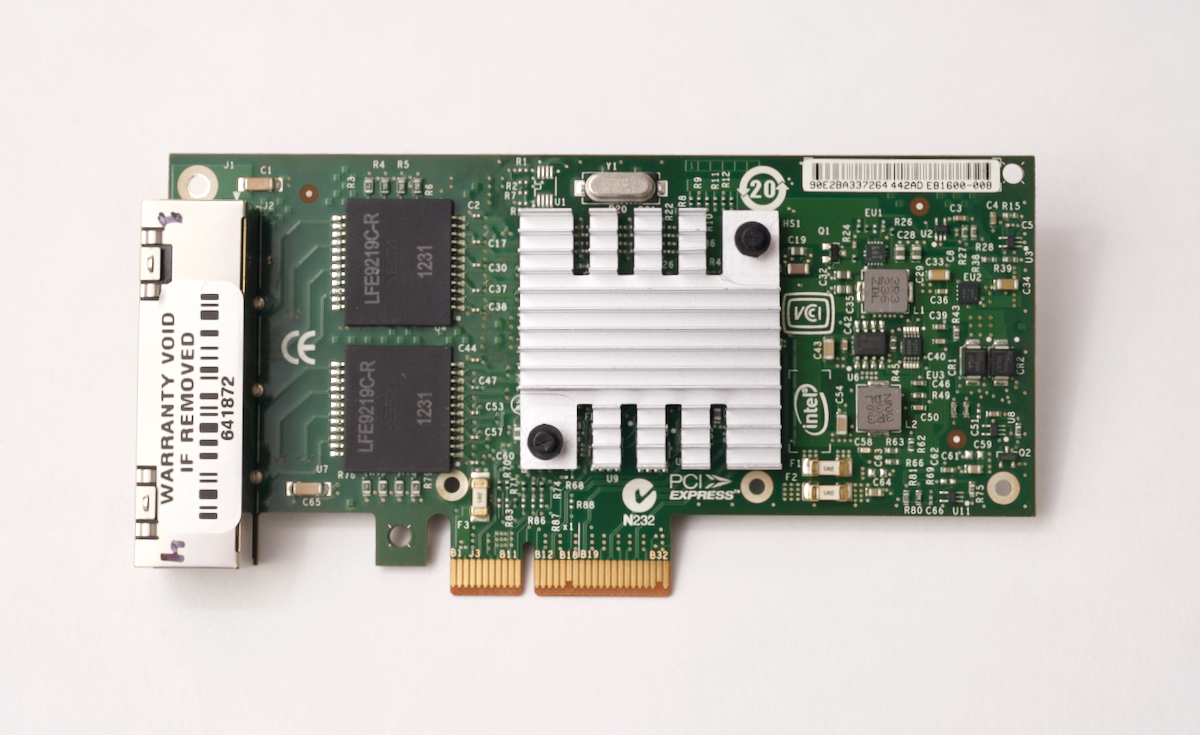
This card is typically used in servers that need multiple network interfaces, but why would someone need so many network interfaces in the first place?
In my case, I just wanted to explore the unknown, and see how many interfaces I could get working on my Pi, with full gigabit speed on each one.
But some people might want to use the Pi as a router, maybe using the popular OpenWRT or pfSense software, and having multiple fast interfaces is essential to building a custom router.
Other people might want multiple interfaces for network segregation, for redundancy, or to have multiple IP addresses for traffic routing and metering.
Whatever the case, none of that is important if the card doesn't even work! So let's plug it in.
Related Video: 5 Gbps Ethernet on the Raspberry Pi Compute Module 4?!.
First Light
I went to plug the card into the Compute Module 4 IO Board, but found the first obstacle: the card has a 4x plug, but the IO board only has a 1x slot. That can be overcome pretty easily with a 1x to 16x PCI Express adapter, though.

Once I had it plugged in, I booted up the Compute Module with the latest Pi OS build, and ran lspci:
$ lspci
00:00.0 PCI bridge: Broadcom Limited Device 2711 (rev 20)
01:00.0 Ethernet controller: Intel Corporation 82580 Gigabit Network Connection (rev 01)
01:00.1 Ethernet controller: Intel Corporation 82580 Gigabit Network Connection (rev 01)
01:00.2 Ethernet controller: Intel Corporation 82580 Gigabit Network Connection (rev 01)
01:00.3 Ethernet controller: Intel Corporation 82580 Gigabit Network Connection (rev 01)
The board was found and listed, but I learned from my GPU testing not to be too optimistic—at least not yet.
The next step was to check in the dmesg logs and scroll up to the PCI initialization section, and make sure the BAR address registrations were all good... and lucky for me they were!
[    0.983329] pci 0000:00:00.0: BAR 8: assigned [mem 0x600000000-0x6002fffff]
[    0.983354] pci 0000:01:00.0: BAR 0: assigned [mem 0x600000000-0x60007ffff]
[    0.983379] pci 0000:01:00.0: BAR 6: assigned [mem 0x600080000-0x6000fffff pref]
[    0.983396] pci 0000:01:00.1: BAR 0: assigned [mem 0x600100000-0x60017ffff]
[    0.983419] pci 0000:01:00.2: BAR 0: assigned [mem 0x600180000-0x6001fffff]
[    0.983442] pci 0000:01:00.3: BAR 0: assigned [mem 0x600200000-0x60027ffff]
[    0.983465] pci 0000:01:00.0: BAR 3: assigned [mem 0x600280000-0x600283fff]
[    0.983487] pci 0000:01:00.1: BAR 3: assigned [mem 0x600284000-0x600287fff]
[    0.983510] pci 0000:01:00.2: BAR 3: assigned [mem 0x600288000-0x60028bfff]
[    0.983533] pci 0000:01:00.3: BAR 3: assigned [mem 0x60028c000-0x60028ffff]
This card doesn't use nearly as much BAR address space as a GPU, so it at least initializes itself correctly, right out of the box, on Pi OS.
So now that I know the card is recognized and initialized on the bus... could it really be that easy? Is it already working?
I ran the command ip link show, which lists all the network interfaces seen by Linux, but I only saw the built-in interfaces:
lo- the localhost networketh0- the built-in ethernet interface on the Piwlan0- the built-in WiFi interface:
The other four interfaces from the NIC were nowhere to be found. I plugged in a network cable just to see what would happen, and the ACT LED lit up green, but the LNK LED didn't come on.

And since I didn't see any other errors in the dmesg logs, it led me to believe that the driver for this card was not installed on Pi OS by default.
Getting Drivers
My first attempt to get a driver was to clone the Raspberry Pi Linux source, and check with make menuconfig to search for any Intel networking drivers in the Linux source tree. I didn't find any, though, so I turned to the next idea, searching on Intel's website for some drivers.
The first page I came to was the Intel Ethernet Adapter Complete Driver Pack, which looked promising. But I noticed it was over 600 MB, was listed as 'OS Independent', and after I looked at what was in the driver pack, it looked like half of Intel's chips over the years were supported.
I just wanted to get the I340 working, and I really didn't care about all the Windows drivers and executables, so I kept searching.
Eventually I landed on the Linux Base Driver for Intel Gigabit Ethernet Network Connections page, and this page looked a lot more targeted towards Linux and a smaller set of devices.
So I downloaded the 'igb' driver, expanded the archive with tar xzf, then I went into the source directory and ran make install following Intel's instructions.
The install process said it couldn't find kernel headers, so I installed them with sudo apt install raspberrypi-kernel-headers, then I ran make install again.
This time, it spent some time doing the build, but eventually the build errored out, and I saw an error about an implicit declaration of function 'isdigit'. I copied and pasted the error message into search, and luck was with me, because the first result mentioned that the problem was a missing include of the ctype.h header file.
Armed with this knowledge, I edited the igb_main.c file, adding the following line to the other includes:
#include <linux/ctype.h>
This time, when I ran make install, it seemed to succeed, but then at the end, when it tried copying things into place, I got a permissions error, so I tried again with sudo and it compiled successfully!
I could've used modprobe to attempt loading the new kernel module immediately, but I chose to reboot the Pi and cross my fingers, and after a reboot, I was surprised and very happy to see all four interfaces showing up when I ran ip link show:
$ ip link show
1: lo: <LOOPBACK,UP,LOWER_UP> mtu 65536 qdisc noqueue state UNKNOWN mode DEFAULT group default qlen 1000
    link/loopback 00:00:00:00:00:00 brd 00:00:00:00:00:00
2: eth0: <BROADCAST,MULTICAST,UP,LOWER_UP> mtu 1500 qdisc mq state UP mode DEFAULT group default qlen 1000
    link/ether b8:27:eb:5c:89:43 brd ff:ff:ff:ff:ff:ff
3: eth1: <NO-CARRIER,BROADCAST,MULTICAST,UP> mtu 1500 qdisc mq state DOWN mode DEFAULT group default qlen 1000
    link/ether 90:e2:ba:33:72:64 brd ff:ff:ff:ff:ff:ff
4: eth2: <NO-CARRIER,BROADCAST,MULTICAST,UP> mtu 1500 qdisc mq state DOWN mode DEFAULT group default qlen 1000
    link/ether 90:e2:ba:33:72:65 brd ff:ff:ff:ff:ff:ff
5: eth3: <NO-CARRIER,BROADCAST,MULTICAST,UP> mtu 1500 qdisc mq state DOWN mode DEFAULT group default qlen 1000
    link/ether 90:e2:ba:33:72:66 brd ff:ff:ff:ff:ff:ff
6: eth4: <NO-CARRIER,BROADCAST,MULTICAST,UP> mtu 1500 qdisc mq state DOWN mode DEFAULT group default qlen 1000
    link/ether 90:e2:ba:33:72:67 brd ff:ff:ff:ff:ff:ff
7: wlan0: <BROADCAST,MULTICAST> mtu 1500 qdisc noop state DOWN mode DORMANT group default qlen 1000
    link/ether b8:27:eb:74:f2:6c brd ff:ff:ff:ff:ff:ff
Testing the performance of all five interfaces
So the next step is to see if the Pi can support all five gigabit ethernet interfaces at full speed at the same time.
I've already tested the built-in ethernet controller at around 940 Mbps, so I expect at least that much out of the four new interfaces individually. But the real question is how much bandwidth can I get out of all five interfaces at once.
But I ran into a problem: my home network is only a 1 Gbps network. And even if I set up five computers to pump data to the Pi as fast as possible using the iperf network benchmarking tool, the network will only put through a maximum of 1 gigabit.
So I had to get a little creative. I have my home network and my MacBook Pro that I can use for one of the interfaces, but I needed to have four more completely separate computers to talk to the Compute Module with their own full gigabit interfaces.
So I thought to myself, "I need four computers, and they all need gigabit network interfaces... where could I find four computers to do this?" And I remembered, "Aha, the Raspberry Pi Dramble!" It has four Pi 4s, and if I connect each one to one of the ports on the Intel card, I'd have my five full gigabit connections, and I could do the test.
So I grabbed the cluster and scrounged together a bunch of USB-C charging cables (I normally power the thing via a 1 Gbps PoE switch which I couldn't use here). I plugged each Pi into one port on the Intel NIC. My desk was getting to be a bit cluttered at this point:

To make it so I could remotely control the Pis and configure their networking, I set them up so their wireless interface connected to my home WiFi network, so I could connect to them and control them from my Mac.
At this point, I could see the wired links were up, but they used self-assigned IP addresses, so I couldn't transfer any data between the Dramble Pis and the Compute Module.
So I had to set up static IP addresses for all the Pis and the interfaces. Since networking is half voodoo magic, I won't get into the details of my trials getting 5 different network segments working on the CM4, but if you want all the gory details, check out this GitHub issue: Test 4-interface Intel NIC I340-T4.
I assigned static IP addresses in /etc/dhcpcd.conf on each Pi so they could all communicate independently.
Then, I installed iperf on all the Pis to measure the bandwidth. I ran five instances of iperf --server on the Compute Module, each one bound to a different IP, and I ran iperf on each of the Pis and my Mac simultaneously, one instance connecting to each interface.
And the result was pretty good, but not quite as fast as I'd hoped.
In total, with five independent Gigabit network interfaces, I got 3.06 Gbps of throughput. And I individually tested each interface to make sure they got around 940 Mbps, and they all did when tested on their own... So theoretically, 5 Gbps was possible.
I also tested three interfaces together, and all three were able to saturate the PCIe bus with about 3 Gbps of throughput.
But then I tried also testing three interfaces and the Pi's built-in Ethernet... and noticed that I still only got about 3 Gbps! I tried different combinations, like three Intel interfaces and the onboard interface, two Intel interfaces and the onboard interface, and in every case, the maximum throughput was right around 3 Gbps.
I was really hoping to be able to break through to 4 Gbps but it seems like there may be some other limits I'm hitting in the Pi's networking stack. Maybe there's some setting I'm missing? Let me know in the comments!
Anyways, benchmarks are great, but even better than knowing you can get multiple Gigabit interfaces on a Pi is realizing you can now use the Pi to do some intelligent networking operations, like behaving as a router or a firewall!
What do you do with this thing?

The next thing I'd like to try is installing OpenWRT or pfSense, and setting up a fully custom firewall... but right now I need to put a pin in this project to save some time for a few other projects I'm working on and cards I'm testing—like a 10 GbE NIC!
Speaking of which, all the testing details for the Intel I340-T4, and all the other PCIe cards I'm testing, are available through my Raspberry Pi PCI Express Card database.
I'll be posting more results from other cards as soon as I can get them tested!
Comments