Dell XPS 13 (9360) Review from a lifelong Mac user
I've used Macs as my primary computing devices my entire life. And though I continue to use a Mac for my primary workstation for both work and personal projects, my use of computers has evolved in the past few years quite a bit. With more of my stuff moving into the cloud and fewer software applications being exclusively tied to macOS or Windows, it's given me more freedom to do some amount of work from a tablet (currently iPad Air 2), Mac (currently 2015 (work) or 2016 (personal) MacBook Pro), and even my old PC laptop (a Lenovo T420 that I used mostly for testing).
After lugging the T420 with me to an open source conference a couple weeks ago, I decided I'd finally go ahead and acquire a modern, Ultrabook-style Windows laptop, and looking around at options for an open source developer more comfortable in Linux than Windows 10, I narrowed it down to:
- Lenovo ThinkPad Carbon X1
- ASUS ZenBook
- Dell XPS 13
I settled on the Dell XPS 13 after reading through a bunch of reviews, looking at the features vs. size and battery life (I really value a compact laptop, especially coming from the behemoth T420!), and especially finding a really good price on a used 9360 model.

The model I purchased has the following specs:
- Intel Core i5-7200U - 2.50 GHz dual-core
- 8 GB LPDDR3-1866MHz RAM
- 120 GB SK Hynix SC311 SSD
- FHD (1080p) InfinityEdge display
- Intel HD Graphics 620
- 720p integrated webcam
- Windows 10 Professional
It's basically the base model, but I easily upgraded the SSD to a 500 GB model (see my experience upgrading the SSD here). I would've preferred 16 GB of RAM since I want to do some development and testing on the laptop... but that puts it in a price bracket I can't justify for a secondary computer mostly used for research and testing!
Hardware Build Quality
The fit and finish of the XPS lineup was one of the major reasons I chose it over the other models on my shortlist. I like a solid but light laptop, and the laptop against which I'll measure all others is still the 11" MacBook Air—if Apple would update it with a retina display and a larger 12" screen with a smaller bezel (so, basically, the 12" MacBook but with passable specs), I'd dump my MacBook Pro in a heartbeat! Note also that the XPS 13 is as wide as the 2016 MacBook Pro 13", but is very slightly thinner in the front (and slightly thicker in the back), and a little shorter front-to-back:
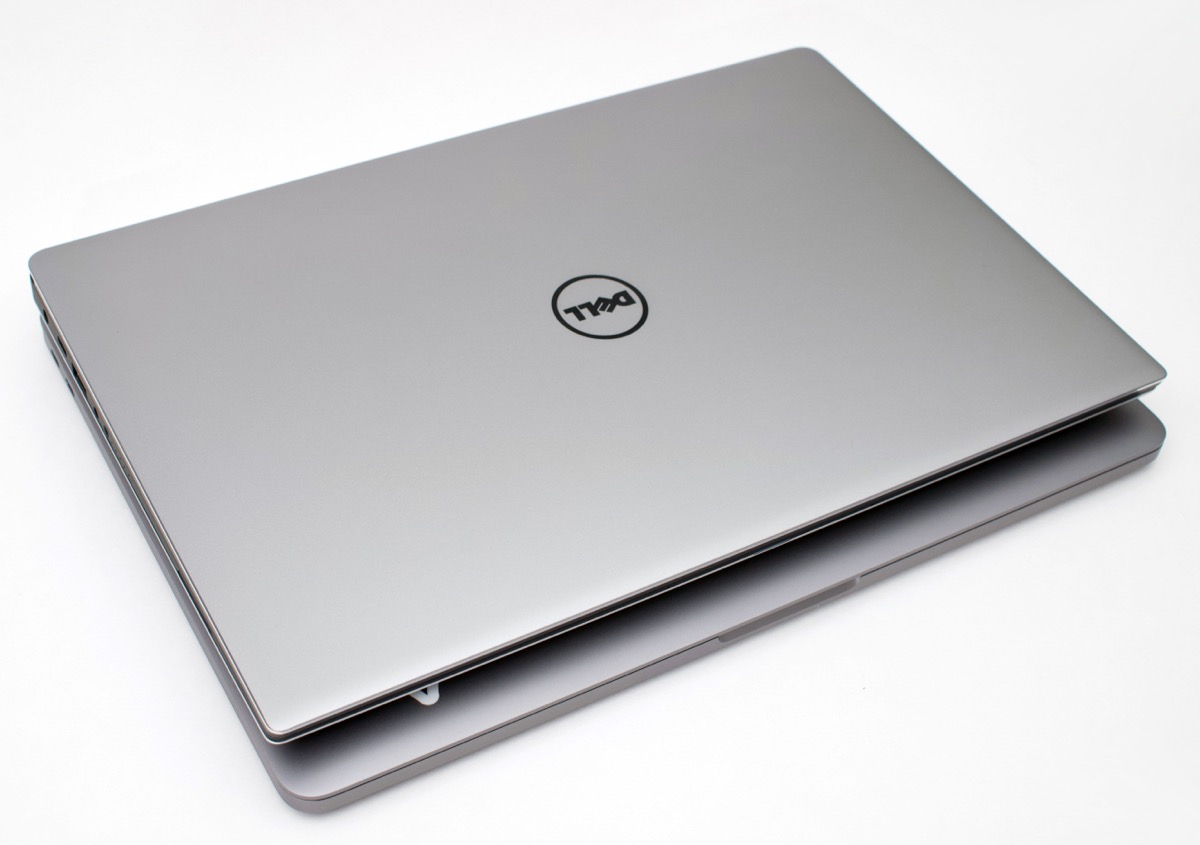
The Dell XPS 13 is a very nice piece of hardware—dare I say the best hardware of any PC laptop I've used or tried so far. The InfinityEdge display means the bezel is tiny, meaning the footprint is tiny. The aluminum front and back feel high quality and durable, like my MacBook Pro. There's a good balance and weight to it overall, and the rubber feet keep it solidly in place on any surface I've used it on so far.
There are three points about the hardware that were less-than-perfect, though:
The carbon fiber interior palmrest: When I opened the XPS the first time, I immediately noticed that my thumbprint remained after I opened the laptop. It's a little annoying—I don't have super-oily fingers, and have never had issues with other laptops (either hard plastic like the T420 or the cold aluminum of a MacBook Pro)—but I find myself wiping down the palmrests on the XPS 13 every hour or two, just because the finger prints make it look like I just ate a Whopper or Big Mac and wiped my greasy fingers on the surface!
The hinge mechanism: Speaking of opening the XPS—this is definitely a two-handed operation. And unlike the MacBook Air and Pro, there's no 'lip' in the frame with which you can easily slide a finger under the edge of the screen and pull up. So it's a little awkward in some situations where I'm used to one-handed operation (e.g. holding a drink, or positioning the laptop quickly while I'm holding something else). It's not a huge deal, but it is a mark against the laptop in my book.
The Keyboard: The keyboard hearkens back to the 2012-2015 'chicklet' style key action I was used to from the MacBook Pro line. It's slightly more refined than what I'm used to from a MacBook Air, but there is a lot of space between the keys, in the 'gutters'—enough so that I had to consciously move my pinky a tiny bit to get more accurate hits on the left Shift key. Apparently my fingers are optimized for the Shift key's edge to be a millimeter or so closer to the Z.
Trackpad
The trackpad is such an essential component of modern laptop usage (unless you're using it as a desktop replacement exclusively) that it warrants its own discussion. And, as someone who is used to the crème de la crème of laptop trackpads (Apple's glass Force Touch trackpad), a bad trackpad experience really puts me off the entire experience of using a laptop. My number one gripe with my old T420 was the trackpad, with its finger-bludgeoning dotted/textured surface, and tiny tracking area (compared to most newer laptops).
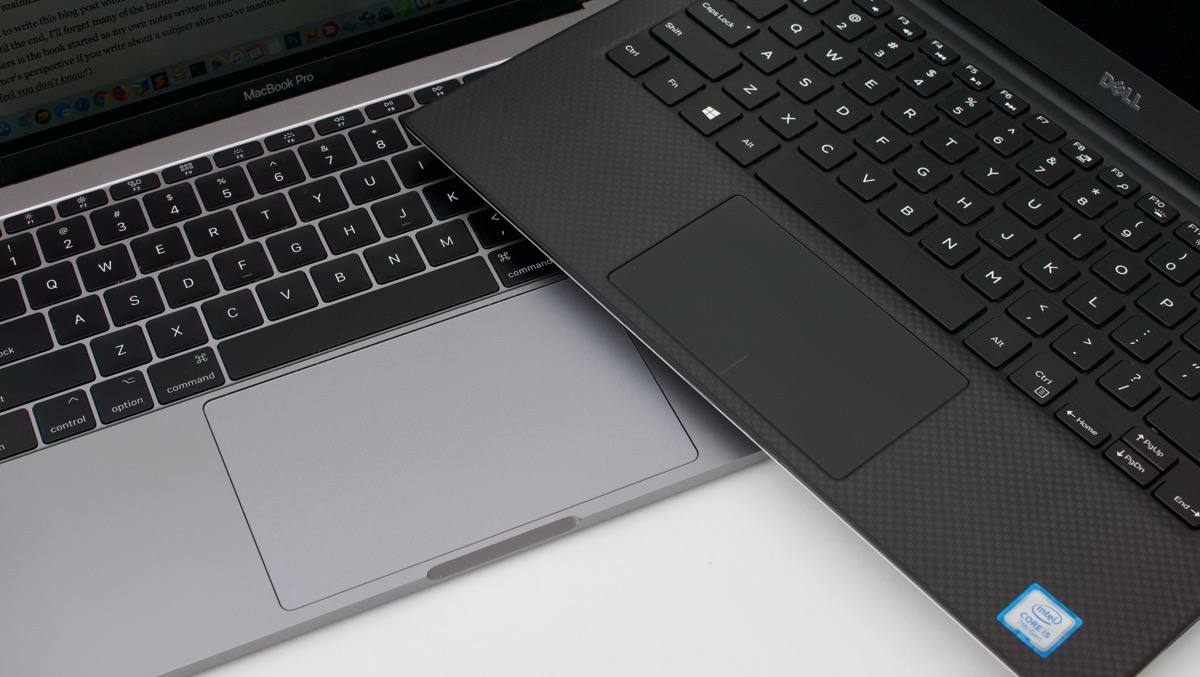
The XPS 13 has a decent-sized trackpad, which is much wider than it is tall (following the aspect ratio of the display, it seems), and it has a very nice tracking surface. As close to Apple's glass surface as any I've used. It's not a Force Touch trackpad with haptic feedback, but rather a traditional trackpad with a physical clicking mechanism in the bottom left and right corners.
The software controls are pretty flexible, allowing 1-5 finger gestures (at least with Windows 10), and I don't really have much to complain about. The force required to physically click (I detest tap-to-click!) is a tad bit more than I'd prefer, but again, I've been pampered by Apple's Force Touch trackpads, which allow for different 'physical' click sensitivity settings.
Bottom line: This is the best trackpad I've used in a PC laptop, but it's still lacking a little in comparison to the best trackpad designs (IMO) from Apple.
Using the Apple Magic Trackpad 2 with Windows 10
Before wrapping up the trackpad discussion, I wanted to mention how I'm using my external Magic Trackpad 2—my favorite pointing device for any computer I've used—with the Dell XPS 13, because for many a Mac user not used to using Apple devices with Windows, they might not realize you can still use all the features of your fancy Apple hardware—just with a little more effort than would be required with most 'Made for Windows' accessories.
For those using Boot Camp on a Mac, and booting Windows 10 on a Mac itself, Apple's own (somewhat limited) Boot Camp control panel for Windows allows some controls over gestures, right click, sensitivity, etc.
But for those using PC hardware, the Boot Camp control panel won't help much. Instead, I've chosen to rely on a third party utility, the Magic Trackpad 2 Control Panel from Magic Utilities. It's a paid extension, but it provides control over every aspect of the Magic Trackpad 2.
Display
If I were buying the XPS 13 as my only laptop, I'd be a little more picky about the display. Having used high quality LG 4K external displays, and the Retina display on the 2015 and 2016 MacBook Pro, my standards for a display are pretty high; I do a decent amount of photography work, and when processing photos from my 24 Megapixel Nikon D750 and Sony a6000, I need as sharp and color-accurate a display as possible.
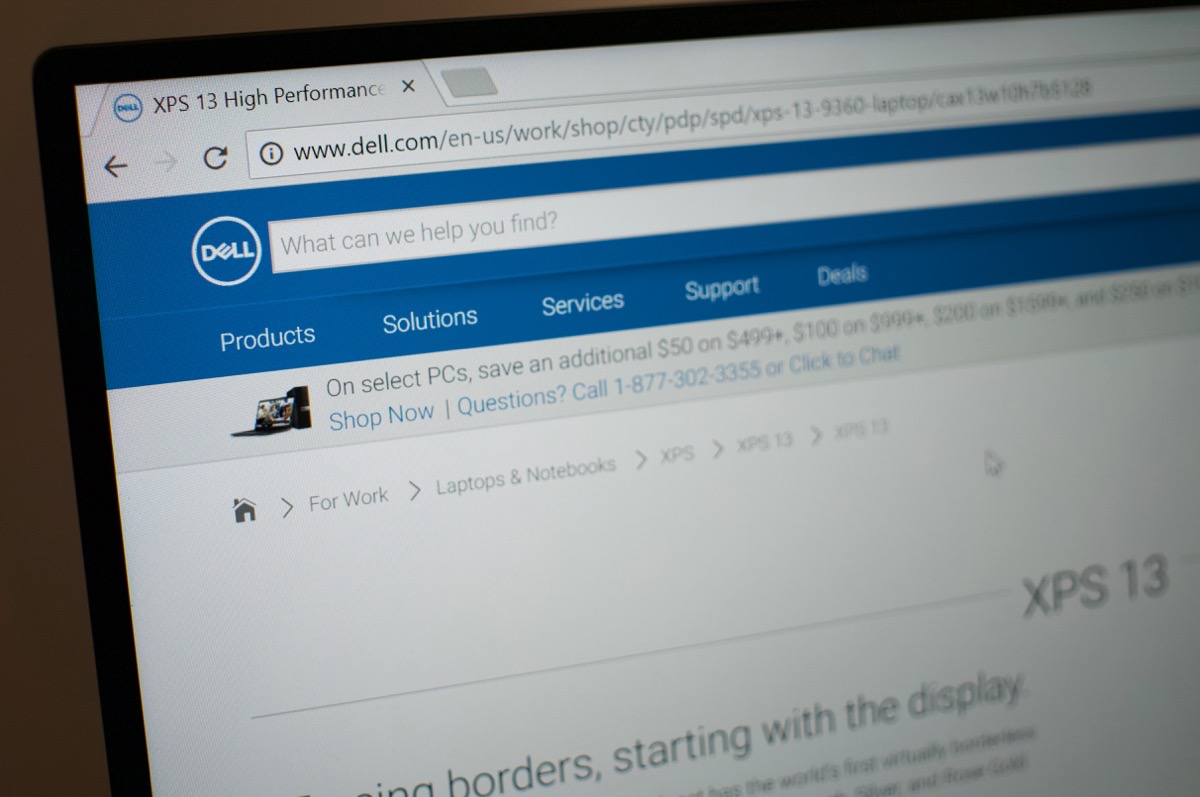
The XPS 13's FHD ('Full HD', or 1080p (1920x1080)) display is very good. Definitely a step down in color range and sharpness from the display in both my Retina MacBook Pros, but it's very good nonetheless. 1080p is a good tradeoff between resolution, battery life, and GPU performance, and the resolution is close enough to 'retina' quality that I'm satisfied for development work or day-to-day use.
Dell also offers a 4K display option, but according to various reports, it eats into battery life, has an even narrower color gamut, and in this form factor, is a little too much resolution to make a huge difference. It also adds a bit more to the cost, so it's probably not worth the tradeoffs just to get the extra pixels on a 13" display.
I/O Ports and Thunderbolt 3
One of the few major benefits of the newer MacBook Pros with only Thunderbolt 3 connectivity is I've finally reached my laptop-as-desktop nirvana state of only having one cable to plug into my laptop to provide:
- Power for charging
- 4K monitor connection (with 60 Hz refresh rate)
- USB 3.0 for keyboard, trackpad, SD card reader, and portable hard drives
- 1 Gbps Ethernet
In the past, I had setups where I had two or three cables to plug in whenever I put my laptop on my desk. Or I'd have a large and kludgy docking station. But no longer; now I have one cable sitting on my desk, and I plug it in to get all the connectivity I need. I am currently using the Elgato Thunderbolt 3 Dock, which cost $300, but can be hard to find in stock.
Can the Dell XPS 13's Thunderbolt 3 port do the same thing? You bet!
It's really awesome to be able to unplug my MacBook Pro, then plug in the XPS 13, and have the exact same setup with my external monitor, keyboard, and trackpad (and all the other peripherals).
One gripe with this experience, though, which has nothing to do with the hardware: the first time you plug in a dock to the Thunderbolt 3 port, Windows 10 spends about 5 minutes (literally!) identifying a bunch of new devices and adding them to the system, with a notification popping up for each thing. And unlike the Mac, where a couple seconds after you plug it in (even the first time), the new peripherals are usable, with Windows the new peripheral isn't usable (e.g. the display doesn't show an image, the trackpad doesn't track, the keyboard doesn't type) until Windows is finished setting up each device... one at a time. So the first time I plugged in the Dell, I thought the Thunderbolt 3 port might've been broken. Luckily it's just Windows' usability that's broken, but I knew that already ;-)
The XPS 13 also has a traditional barrel plug for AC charging, and comes with an old fashioned two-piece charging adapter. It has a charging light, but unlike the Magsafe connector I'm used to, it's just 'on' or 'off' (no multi-color charging status indication). There is a little button and 5 LEDs on the left side of the computer where you can quickly check battery charge status, though the LEDs seemed quite dim to me (you have to look head-on to see how many are lit).

Overall, the I/O situation on the XPS 13 is great for the size of the laptop, especially considering there's a Thunderbolt 3 connector in addition to an SD card reader, two USB 3.0 ports, an AC charging port, and headphone jack.
Battery Life and Thermal Management
Battery life, in my limited and non-scientific testing, has been excellent. Since this is a secondary laptop, I usually pull it out for a day's work, then plug it in to re-charge the battery, put it on my shelf for a week or two, then use it again another day. I've never run out of battery in a normal day's work so far, and just like the 2015 and 2016 MacBook Pro, the battery life is good enough that I don't really worry about bringing a charger anywhere unless I am planning on running tons of builds (e.g. Docker images or VM builds), or need to charge it up overnight.
In my normal day-to-day use (watching videos, streaming music, reading, programming), the battery will easily last all day, even with the screen at maximum brightness.
Unlike most PC laptops I've used, the thermal management is pretty good too; no area of the laptop heats up enough to burn my skin, and the XPS 13 never seems to turn into a small space heater (like my ThinkPad used to do quite often... even when idle!).
However, the XPS 13's fans do kick in quite often, even when just doing light tasks like browsing the web or typing. I was hoping it would be more like the MacBooks, which usually won't need to ramp the fans up to an audible level unless you're doing heavier work, like encoding a video or loading a news site web page without an ad blocker... but alas the fans often kick in and are audible during normal usage.
So, the XPS 13's battery life is excellent, but overall thermal management is just decent.
Built-in Webcam Nose-cam
It seems like every flagship laptop design has a major achilles heel. For the TouchBar MacBook Pro... it's the TouchBar. For the Dell XPS 13, it's the webcam. Don't take my word for it, though—every single review I found had a similar reaction to the webcam:
"And then there’s the placement of the webcam, which is something I disliked when I first used this computer three years ago and can’t stand today." source
"The Dell XPS 13 is our favorite laptop, but there's one thing we can't stand about it — the camera on the bottom-left of the bezel is perfect for taking pictures of your nostrils and chin." source
"The New Dell XPS 13 Is So Good, You Can Almost Forgive Its Dumb Webcam" source
"It's silly that we're still talking about this in 2018, but alas, we are." source
Here's yours truly, testing out the webcam:
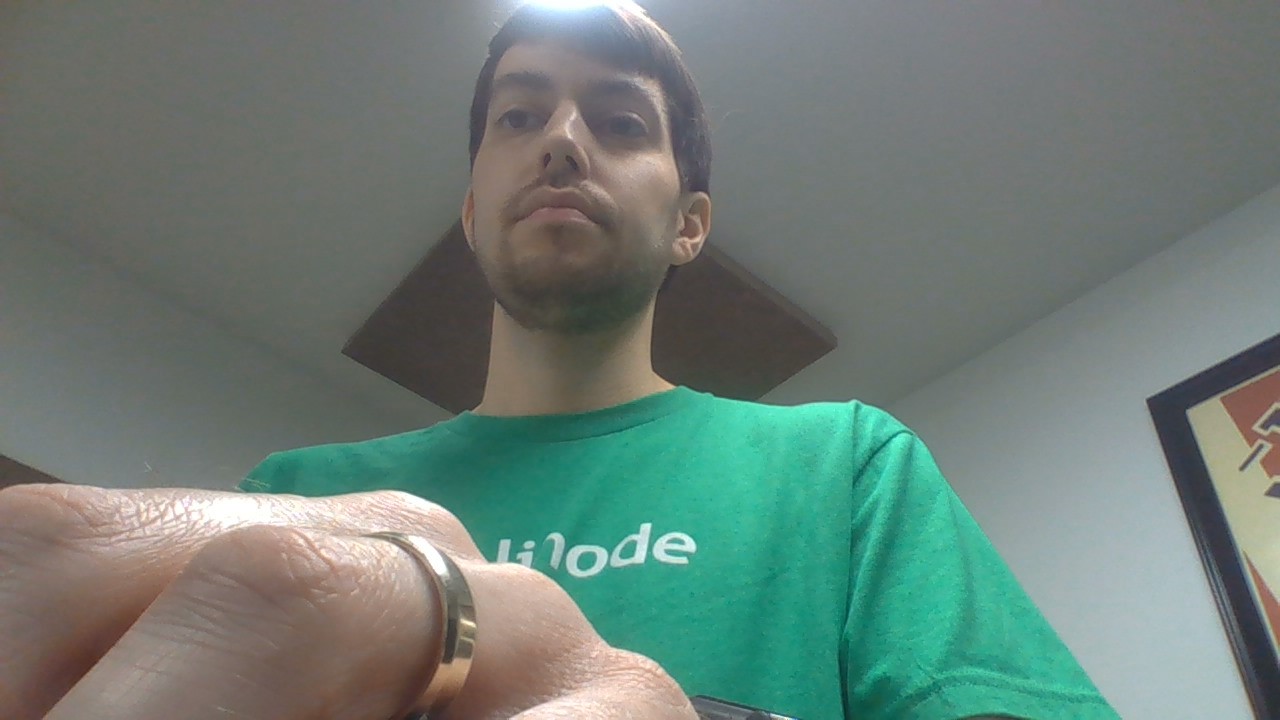
Not only does this webcam placement take the viewer on a journey right up the subject's nostrils, it also drops an ungodly-massive hand front and center. No way to mask the fact that you're typing something during a conference call with this setup!
Seriously. If I had to use this as my daily driver, I would permanently disable the webcam. I'm lucky in that I have an external Logitech webcam atop my external 4K display, so it's a non-issue for desk use. But if you're a road warrior or are used to using your built-in webcam, the Dell XPS 13 will treat you to a surprise the first time you try video chat. A very unwelcome, unflattering surprise.
By far, the worst trait of this laptop is the abysmal webcam placement. And I thought only Apple was accused of putting form over function! The only reason the webcam is placed under the screen is to maintain the thin 'InfinityEdge' on the top bezel. I'd much rather have a hair thicker InfinityEdge with a reasonably-placed webcam.
Summary
The ultimate question, I think, is: Would I be happy moving from my 2016 MacBook Pro 13" to the Dell XPS 13, based on the hardware alone? I think... maybe. If I didn't do as much photography and light video editing work, it would be a definite 'yes'.
But between the webcam and the display quality, it would be a hard sell for me. It's a great laptop, with many great attributes. The trackpad is great, the display is good, the form factor is great, the keyboard is very good... but a lot of the finer details are still lacking compared to Apple's hardware.
And it's this trait that keeps me using Apple's laptops, despite infuriating design changes in the 2016-2017 MacBook Pro models (I spilled enough ink on that issue in my post "I returned my 2016 MacBook Pro with Touch Bar"). Apple should worry, though—the top-end professional models from Dell, Lenovo, and ASUS are getting closer and closer to the build quality of the Mac... and decisions like having a crippled non-TouchBar model, doubling down on a keyboard design that has serious issues, and sacrificing I/O flexibility for portability are working against Pro-level use of Apple's laptops.
Comments