Remapping the Caps Lock key to Escape in macOS Sierra
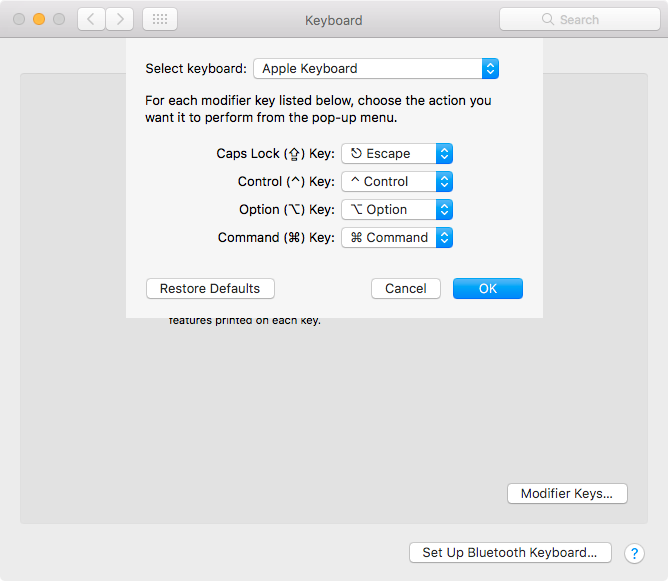
Update: As of macOS Sierra 10.12.1, the Caps Lock -> Escape remapping can be done natively in the Keyboard System Preferences pane! To remap without any 3rd party software, do the following:
- Open System Preferences and click on 'Keyboard'
- Click on 'Modifier Keys...'
- For 'Caps Lock (⇪) Key', choose '⎋ Escape'
- Click 'OK'
For the past three years, I've used the Mac Development Ansible Playbook to automatically configure all my Macs, so they have the same applications, utilities, and preferences at all times. One of the most important tweaks I use is the combination of Karabiner and Seil to remap a few keys and to increase the key repeat rate.
Unfortunately, these extensions are not yet working in macOS Sierra, but the people behind the project have crafted a simple utility for the interim, Karabiner Elements, which doesn't yet have a UI and isn't in Homebrew's Caskroom (so I can't automate the setup), but it at least allows key remapping via a JSON configuration file.
For my purposes, I can live without the blazing-fast key repeat rate (right now it's slower than I'm used to, but faster than you can set via the System Preferences configuration), but I can't live without my Caps Lock-as-Escape remapping (muscle memory + Vim mean the teensy tiny Esc key is out of the question!). So here's how I set up Karabiner Elements to remap the key:
- Download Karabiner Elements.
- Expand the image, and run the installer.
- Restart your Mac.
- Open Karabiner Elements, go to the 'Misc' tab, and click 'Check for updates' (this is important—if you don't have the latest version, the remapping probably won't work correctly and you'll end up with no escape key! I had to update to 0.90.39 as of this writing).
- If there was an update, install it, then restart your Mac again.
- Open Karabiner Elements again, and follow the instructions under 'Simple Modifications' to create a remap file at
~/.config/karabiner/karabiner.json. - Open the file and put the following content into the file to define the remapping:
{
    "profiles": [
        {
            "name": "Default profile",
            "selected": true,
            "simple_modifications": {
                "caps_lock": "escape"
            }
        }
    ]
}
After saving the file, your Caps Lock key should start working as Escape; if not, restart your Mac once more, and then it should be working. You can test key presses using the Karabiner-EventViewer app that's included with Elements.
Comments