Configuring CloudFlare with Drupal 8 to protect the Pi Dramble
This post is more than 10 years old. I do not delete posts, because even old information is still useful, but please know that some material on this page may be outdated or incorrect. Thanks!
In a prior post on the constraints of in-home website hosting, I mentioned one of the major hurdles to serving content quickly and reliably over a home Internet connection is the bandwidth you get from your ISP. I also mentioned one way to mitigate the risk of DoSing your own home Internet is to use a CDN and host images externally.
At this point, I have both of those things set up for www.pidramble.com (a Drupal 8 site hosted on a cluster of Raspberry Pis in my basement!), and I wanted to outline how I set up Drupal 8 and CloudFlare so almost all requests to www.pidramble.com are served through CloudFlare directly to the end user!
CloudFlare Configuration
Before anything else, you need a CloudFlare account; the free plan offers the minimal necessary features (though you should consider upgrading to a better plan if you have anything beyond the simplest use cases in mind!). Visit the CloudFlare Plans page and sign up for a Free account.
If you have a CloudFlare Enterprise subscription, it would be much more efficient to use Cache Tags along with the Cloudflare module for Drupal 8. Free or Pro users could also use the Cloudflare module to purge content by URL. Since most readers of this post use the free, this post is geared towards a very simple implementation for that audience.
Once there, you can add your site and use all the default settings for security, SSL, DNS, etc. You'll have to configure your website's DNS to point to CloudFlare, then CloudFlare will have some DNS records that point to your 'origin' (the server IP where your Drupal 8 site is running).
After all that's done, go to the Caching section and choose the 'Standard' level of caching, as well as 'Always Online' (so CloudFlare keeps your static site up even if your server goes down).
The most important part of the configuration is adding 'Page Rules', which will allow you to actually enable the cache for certain paths and bypass cache for others (e.g. site login and admin pages). Free accounts are limited to only 3 rules, so we have to be a bit creative to make the site fully cached but not accidentally lock ourselves out of it!
We'll need to add three rules total:
- A rule to 'cache everything' on www.pidramble.com/*
- A rule to 'bypass cache' on www.pidramble.com/user/login (allows us to log into the site)
- A rule to 'bypass cache' on www.pidramble.com/admin/* (allows content management and administration)
The free account 3-rule limitation means that we have to do a little trickery to bypass the cache on non-admin paths when we're working on the site. Otherwise, our options would be to have some sort of alternate URL for editing (e.g. edit.example.com) that bypasses CloudFlare, or turn off caching entirely while doing development work through the CloudFlare-powered URL!
One major downside to this approach—URLs like node/[id]/edit, if accessed by someone who is not logged in, will be cached in CloudFlare as a '403 - Access Denied' page, and then you won't be able to edit that content (even when logged in) unless you purge that path from CloudFlare or use a different workaround mentioned above).
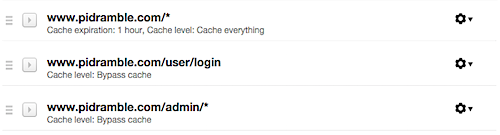
For the three rules, set the following options (only the non-default options you should change are shown here):
'cache everything' on /*:
- Custom caching: Cache everything
- Edge cache expire TTL: Respect all existing headers
- Browser cache expire TTL: 1 hour (adjust as you see fit)
'bypass cache' on /user/login:
- Custom caching: Bypass cache
- Browser cache expire TTL: 4 hours (adjust as your see fit)
'bypass cache' on /admin/*:
- Custom caching: Bypass cache
- Browser cache expire TTL: 4 hours (adjust as you see fit)
Drupal 8 Configuration
To make sure CloudFlare (or any other reverse proxy you use) caches your Drupal site pages correctly, you need to make the following changes to your Drupal 8 site:
- Make sure the 'Internal Page Cache' module is enabled.
- Set a 'Page cache maximum age' on the Performance configuration page (
/admin/config/development/performance). - Add a few options to tell Drupal about your reverse proxy inside your settings.php file:
Inside sites/default/settings.php, add the following configuration to tell Drupal it is being served from behind a reverse proxy (CloudFlare), and also to make sure the trusted_host_patterns are configured:
<?php
// Reverse proxy configuration.
$settings['reverse_proxy'] = TRUE;
$settings['reverse_proxy_addresses'] = array($_SERVER['REMOTE_ADDR']);
$settings['reverse_proxy_header'] = 'HTTP_CF_CONNECTING_IP';

$settings['omit_vary_cookie'] = TRUE;

// Trusted host settings.
$settings['trusted_host_patterns'] = array(
  '^pidramble\.com$',
  '^.+\.pidramble\.com$',
);
?>
Once you've added this configuration, open another browser or an incognito browser session so you can access your site as an anonymous user. Click around on a few pages so CloudFlare gets a chance to cache your pages.
You can check that pages are being served correctly by CloudFlare by checking the HTTP headers returned by a request. The quickest way to do this is using curl --head in your terminal:
$ curl -s --head http://www.pidramble.com/ | grep CF
CF-Cache-Status: HIT
CF-RAY: 25bf2a08a7f425a3-ORD
If you see a value of HIT for the CF-Cache-Status, that means CloudFlare is caching the page. You should also notice it loads very fast now; for this site, I'm seeing the page load in < .3 seconds when cached through CloudFlare; it takes almost twice as long without CloudFlare caching!
2022 Update: It looks like Cloudflare reports headers using all lowercase now, e.g.
cf-cache-statusandcf-ray. So you should usegrep cfinstead ofgrep CF.
Comments