Raspberry Pi microSD card performance comparison - 2015
This post is more than 10 years old. I do not delete posts, because even old information is still useful, but please know that some material on this page may be outdated or incorrect. Thanks!
2018 Update: Please see the latest benchmarks in 2018 using a Raspberry Pi model 3 B+.
This post's benchmarks were performed on a Raspberry Pi 2; for all the latest benchmarks, on Raspberry Pi 3 or later revisions, check out the official Pi Dramble microSD card Benchmarks page.
In my experience, one of the highest-impact upgrades you can perform to increase Raspberry Pi performance is to buy the fastest possible microSD card—especially for applications where you need to do a lot of random reads and writes.
There is an order-of-magnitude difference between most cheap cards and the slightly-more-expensive ones (even if both are rated as being in the same class)—especially in small-block random I/O performance. As an example, if you use a normal, cheap microSD card for your database server, normal database operations can literally be 100x slower than if you used a standard microSD card.
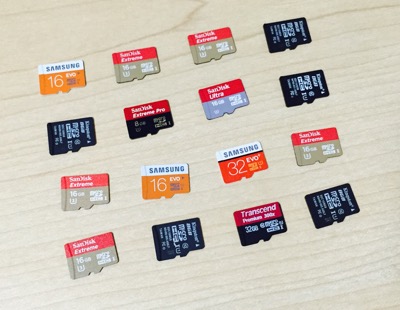
Because of this, I went and purchased over a dozen different cards and have been putting them through their paces. Here are the results of those efforts, in a nice tabular format:
| Card Make/Model | hdparm buffered | dd write | 4K rand read | 4K rand write |
|---|---|---|---|---|
| OWC Envoy SSD (USB) 64GB | 34.13 MB/s | 34.4 MB/s | 7.06 MB/s | 8.20 MB/s |
| SanDisk Ultra Fit (USB) 32GB | 31.72 MB/s | 14.5 MB/s | 4.99 MB/s | 1.07 MB/s |
| Samsung EVO+ 32GB | 18.45 MB/s | 14.0 MB/s | 8.02 MB/s | 3.00 MB/s |
| Samsung Pro+ 32GB | 18.46 MB/s | 18.5 MB/s | 8.10 MB/s | 2.35 MB/s |
| Samsung Pro 16GB | 18.39 MB/s | 18.2 MB/s | 7.66 MB/s | 1.01 MB/s |
| Samsung EVO 16GB | 17.39 MB/s | 10.4 MB/s | 5.36 MB/s | 1.05 MB/s |
| SanDisk Extreme Pro 8GB | 18.43 MB/s | 17.6 MB/s | 7.52 MB/s | 1.18 MB/s |
| SanDisk Extreme 16GB | 18.51 MB/s | 18.3 MB/s | 8.10 MB/s | 2.30 MB/s |
| SanDisk Ultra 16GB | 17.73 MB/s | 7.3 MB/s | 5.34 MB/s | 1.52 MB/s |
| NOOBS (1.4, C6) 8GB | 17.62 MB/s | 6.5 MB/s | 5.63 MB/s | 1.01 MB/s |
| Transcend Premium 300x 32GB | 18.14 MB/s | 10.3 MB/s | 5.21 MB/s | 0.84 MB/s |
| PNY Turbo (C10 90MB/s) 16GB | 17.46 MB/s | TODO | 6.25 MB/s | 0.62 MB/s |
| Toshiba 16GB | 17.66 MB/s | 11.2 MB/s | 5.21 MB/s | 0.21 MB/s |
| Sony (C10) 16GB | 15.38 MB/s | 8.9 MB/s | 2.47 MB/s | 0.24 MB/s |
| Kingston (C10) 16GB | 17.78 MB/s | 9.0 MB/s | 5.75 MB/s | 0.21 MB/s | Kingston (C10) 8GB | 12.80 MB/s | 7.2 MB/s | 5.56 MB/s | 0.17 MB/s |
| Nasya C10 16GB | 16.05 MB/s | 8.4 MB/s | 2.28 MB/s | 0.38 MB/s |
| No-name (C4) 4GB | 13.37 MB/s | < 1 MB/s | < 0.1 MB/s | < 0.01 MB/s |
After using most of these cards in different situations over the past year or so (some for Pis running MySQL, others for file shares, and yet others just doing data logging and web dashboard displays), I've also noted that reliability-wise, all of the 16 cards I've used so far (even the no-name C4 card) have been flawless.
However, judging by performance vs. price, there are a couple clear standout cards—one is the Samsung Evo+, which is the fastest card for random access by a mile. And this year, I've seen it on sale for $10-20 for 32 or 64 GB, so it's a steal. Other than that, I'd go with the SanDisk Extreme, as it can be had for about the same price, or the Samsung Evo (without the +), as it can be had for even less if you just need 8 or 16 GB.
2015 Winner: Samsung Evo+ 32 GB (~$12 on Amazon)
Benchmarks
hdparm buffered
sudo hdparm -t /dev/mmcblk0
Rationale: hdparm gives basic raw throughput stats for buffered reads (by the disk/device itself). You could also test with -T instead of -t to test the OS filesystem cache performance (which allows the OS to dramatically speed up certain read operations), but for our purposes we just want to test the device itself.
Setup:
- Install hdparm:
sudo apt-get install -y hdparm
dd write
sudo dd if=/dev/zero of=/drive/output bs=8k count=50k conv=fsync; sudo rm -f /drive/output
Rationale: dd simply copies data from one place (if) to another (of). If your filesystem caches are big enough, this is a pretty poor disk speed comparison test. Because of that, make sure that count is set to a parameter large enough to cause the OS to actually write data to the drive (e.g. 50k 8k blocks ~= 400 MB, which shouldn't be able to be cached on a microSD card in a Pi!.
iozone 4K Random read/write
iozone -e -I -a -s 100M -r 4k -r 512k -r 16M -i 0 -i 1 -i 2 [-f /path/to/file]
Rationale: iozone is a very robust filesystem benchmark tool, which does a lot of useful tests that make sure you're getting a broad overview of read and write performance for a variety of block sizes and situations. I like the lower block size random I/O tests especially, because many operations (like logging data, writing a row to an ACID-compliant database, or bulk loading of data) require as fast of small-block-size random I/O as possible.
Most cheap microSD cards, even if rated as being 100MB/sec+ class 10 cards, can't sustain anywhere near that rate when writing random data—especially on the Raspberry Pi's measly data bus. (Note that most of the above benchmarks, when run on a USB 3.0 card reader on my MacBook Air, show 5, 10, or 15 times greater performance in that environment).
Setup:
- Download the latest version:
wget http://www.iozone.org/src/current/iozone3_434.tar - Expand the tarfile:
cat iozone3_434.tar | tar -x - Go into the
srcfolder:cd iozone3_434/src/current - Build the executable:
make linux-arm - Symlink the executable into your local bin folder:
sudo ln -s /home/pi/iozone_434/src/current/iozone /usr/local/bin/iozone
More Information
Check out the source for these benchmarks (which is updated every few months as I test new cards and newer versions of Raspbian): microSD card benchmarks - part of the Raspberry Pi Dramble Wiki.
Comments