2013 MacBook Air WiFi Problems (high latency, dropped connections) [Updated]
This post is more than 10 years old. I do not delete posts, because even old information is still useful, but please know that some material on this page may be outdated or incorrect. Thanks!
Update (3/4/14): Mac OS X 10.9.2 seems to fix at least the latency issue—and possibly dropped connections as well, at least for most users I've spoken with... We'll see!
Update 2 (11/25/14): If you're having trouble with iOS 8 and/or Yosemite, it could be related to AirDrop services over WiFi. Please see WiFried: iOS 8 WiFi Issue
For the past few months, I've been battling my 2013 11" MacBook Air's WiFi problems. I've taken the MacBook to the Genius Bar twice, and have attempted dozens of fixes. Judging by the number of individuals who have posted to this thread on Apple's Support Communities forum, among many other similar threads, I'm not the only MacBook Air owner suffering from WiFi issues like high latency, slow throughput, connection dropouts, and other random problems.
Here are some of the symptoms I and others have encountered:
- Terrible latency: while sitting in one location, the Air might have ping times ranging from 30-4000ms, with many dropped packets. This makes things like connecting to a remote server (either with SSH or via VNC or RDC) a painful experience, and causes some applications (like streaming video or VPN connections) to drop and reload, also contributing to the pain.
- Dropped packets: sometimes, when loading a web page, part of the page will load, then the connection seemingly drops for 5-30 seconds, then finally, the rest of the page loads. It's almost worse than being connected to a 56kbps dial-up modem!
- Unstable throughput: When using a bandwidth-measuring tool like SpeedTest.net, bandwidth on a very stable connection can vary between 5-40 Mbps (while another Mac or PC sitting right next to the Air reliably gets 40 Mbps).
- Dropped Network Connections: Sometimes, WiFi signals can simply drop off for no reason, even if the connection seems very strong (full bars in the menubar, and RSSI > -50).
I've done literally hundreds of tests to diagnose, reproduce, and (in some situations) solve these problems, and I'll recount some of these things here, for the benefit of the many others having these issues, and possibly for an Apple engineer tasked with fixing the issues.
These two graphics below show some of the investigation I've done (using ping and Apple's Wireless Diagnostics tool:
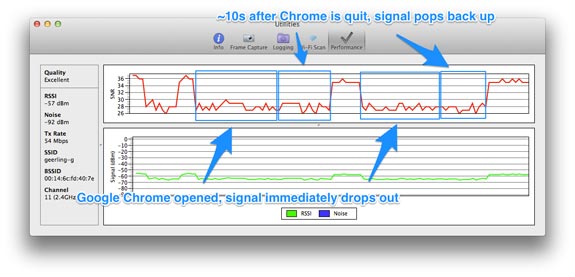
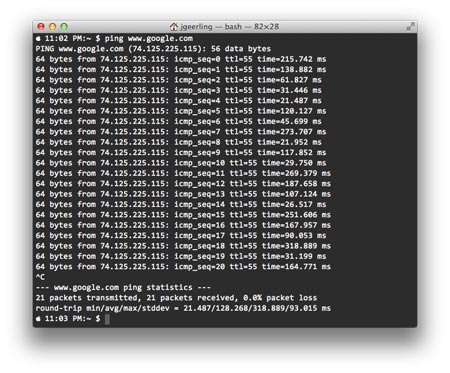
Also, as a point of reference, I had my wife's 2011 13" MacBook Air and an old Dell Latitude laptop next to me for almost all these tests—they never showed any drop in performance (throughput, latency, or connectivity)—not once. So I can guarantee it's not the network that's having trouble.
Theories
After trying many of the 'fixes' below, my best bet is that this issue is related to the power management Apple is using in Mavericks (or possibly in the driver used for the AirPort card). Additionally, antenna location may be a contributing factor, since disabling or changing the way Bluetooth works can have an affect on signal strength.
It seems to me that the WiFi driver and/or Mavericks' power-saving features might be too aggressive—it seems the WiFi chip is put into some low-power state if it doesn't have constant activity (like a ping every 1/5th of a second), and this is causing signal strength and stability issues.
Also, perhaps the WiFi antenna(s?) is too close, or oriented poorly, in comparison to the Bluetooth antennna(s?). Disabling Bluetooth often leads to a more stable connection, and some Bluetooth applications (like Knock, which keeps a constant low-power connection to an iPhone) can practically disable WiFi.
Finally, these are the three major reasons I know there is a problem with WiFi/AirPort in my 2013 MacBook Air running Mavericks, and it's not just my imagination:
- I have tried using an external USB WiFi adapter, and never had any of the issues I have with built-in WiFi.
- I have tried using Apple's USB wired Ethernet adapter, and never had any of the issues I have with built-in WiFi.
- I have done all these tests while sitting next to a 2011 MacBook Air and a 2010-era Dell Latitude, and neither laptops ever experienced any drop in bandwidth or latency.
Now, on to the fixes...
Band-aid fix #1: DoS a router to keep the connection stable
The most telling fix I found, and the reason I think this entire problem could be power-management-related, is that, by simply pinging some external address at least 5 times per second (every 0.2 seconds), latency goes from wildly random (anywhere from <1ms to 1,000+ms), to extremely stable (a ping to my router stablized at ~0.3ms, and a ping to www.google.com stabilized at ~31ms, at least on my home network).
To test if this fixes the latency problem for you, open up Terminal (inside Applications > Utilities), and enter the following command:
ping -i 0.2 [your router IP address]
Your router IP address can be found by going to the Network preference pane, clicking on WiFi, then clicking the Advanced... button, and then clicking on the TCP/IP tab.
Open a separate Terminal window and type in ping www.google.com (this will ping Google's server every second). It should be a stable amount of latency for each ping (the last value in the line). If you go back to your first window and type in Control-C (to exit the ping utility), then see if the latency times for your Google ping start varying again.
This fix could work for a home network, maybe, but definitely not in a corporate environment—you're effectively sending tons of junk traffic at the router, for no good reason (except to tell your Mac's AirPort card to stay in some higher-power state).
Band-aid fix #1-a: Do something else that saturates your wireless connection
Another way to keep the latency low is to use your Mac with an Apple TV and mirror your display (this will keep a constant, high-bandwidth connection to your Apple TV, keeping the wireless interface happy), or to download giant files (like when you run a Speedtest.net speed test)—both of these activities keep your wireless card in a normal/on state, and make it work like it should.
Band-aid fix #2: Switch your router to 802.11n / 5 Ghz-only
One solution which is amenable at home (but impossible at work, because I have no control over my employer's access points or purchasing decisions) is to upgrade the WiFi network to 802.11n-only (or 802.11ac, if you have a fancy—and expensive—new ac-enabled router) on the 5 Ghz band.
I have a few older devices at my house that only work on 802.11g, so I was fortunate to have an extra g-only WiFI router sitting around; I now use my AirPort Express as an 802.11n-only 5 Ghz router, and set the old router to 802.11g-only on the 2.4 Ghz band.
As long as I set my MacBook Air to only use the 802.11n network, I have good throughput, and low latency. However, this comes with a major downside; WiFi range is reduced dramatically, and I can only get about 40-50' away from the router before the connection drops (or gets very slow). On the 802.11g network, I can get up to 80-90' away before the connection drops (meaning I'm covered in every corner of my house).
I'm considering buying an AirPort Extreme and then having it in one part of the house, and my existing Express in another part, but that's a fairly expensive fix for this problem!
Band-aid fix #2: Disable most Bluetooth accessories/applications
At work, my desk seems to be close to one of the 802.11g-only routers, so the signal strength is usually great (at least, as it is reported by the MacBook Air!). However, I found that certain Bluetooth-enabled applications caused the WiFi to be excruciatingly slow.
One app, in particular, that caused this issue was Knock, an app that keeps a constant, low-power connection to your phone so you can tap it twice to unlock your Mac. With the app running and connected to my iPhone, download bandwidth over WiFi went down to ~0.8 Mbps on a network that usually gets 15-20 Mbps. If I quit the app, the bandwidth went up to 6-8 Mbps.
Sadly, due to this behavior, I have had to stop using Knock. It was a handy convenience app, but alas, it is not for me :(
Band-aid fix #3: Disable Bluetooth entirely
Some people have reported that disabling Bluetooth entirely fixed their problems. Unfortunately, that's not an option for me; I would take a slower internet connection over not being able to use my Magic Mouse. Also, I sometimes use an external Bluetooth keyboard, or some other Bluetooth accessory, and that convenience is worth a ding in my Internet speed (sadly... because usually, with Apple products, I can have it all).
With Bluetooth disabled, my connection does seem to be perfectly stable, though it's usually stable even if I just have my mouse paired with my Air. I'm not sure why Knock's pairing with my iPhone harms the connection more than a mouse (which is constantly sending tracking feedback wirelessly), but that's how it is, at least in my testing, so I guess I'm glad the mouse works better than Knock.
Things that don't work
I also tried a bunch of other things that had no effect whatsoever, but seemed promising:
- Deleted all WiFi networks in System Preferences, then added them back in.
- Disabled Power Nap (in the Energy Saver preference pane).
- Tried using an AirPort Express in mixed mode (b/g/n - 5 Ghz + 2.4 Ghz); in this case, the Air seemed to prefer using 2.4 Ghz connections because that signal was usually stronger.
- Tried using a Netgear WRT54G router (b/g - 2.4 Ghz).
- Completely erased hard drive and did a fresh reinstall of Mavericks. Didn't help at all.
- Had the Genius Bar completely replace the AirPort card with a new one. Didn't help at all.
Troubleshooting tools
In troubleshooting these problems, I've found the following tools and methods to be the most helpful:
pingin the terminal.- Hold down the option key while clicking on the AirPort menu—this way you can see what frequency WiFi is using, as well as the channel and RSSI for your connection (often useful for troubleshooting).
- Apple's Wireless Diagnostics (option-click the AirPort menu, then select "Open Wireless Diagnostics...", type in your admin password, and click View > "Hide Utilities Toolbar", then show it again, to open up the WiFi Performance graph).
- iStumbler helps identify all the WiFi signals your computer can see, in excruciating detail.
Summary and non-Conclusion
I'm still (as of early 2014) trying to find a permanent fix for this issue—as are hundreds of people in various Apple Support threads (one fix that some have reported to work is to roll back the AirPort driver to an older version, downloaded from some random forum, but I'm not trusting enough to try that). I will continue to update this post with more info as I can find it, and please feel free to comment with any findings of your own!
Comments