Tweet your Keynote Presentation - While you're presenting
This post is more than 10 years old. I do not delete posts, because even old information is still useful, but please know that some material on this page may be outdated or incorrect. Thanks!
I recently became aware (thanks, @ppadley!) of a pretty awesome little AppleScript that pulls tweets out of your Keynote presentation's Presenters Notes and posts them to your Twitter timeline. Unfortunately, though, the simple way it used to work was broken when Twitter switched to using oAuth instead of 'basic' (username and password) authentication for using its API.
Luckily, the project, Keynote Tweet, was updated and posted to GitHub, and works in tandem with twurl, a simple Ruby-based command-line Twitter client. Here's how you can get these things working for your own presentations:
Set up a Twitter App for API Access
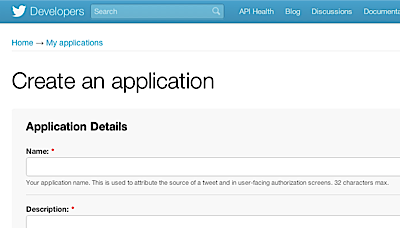
Before you can post to Twitter from your computer (or anywhere besides an existing Twitter app/client, really), you need to create a Twitter App so Twitter will let you interact with the Twitter API.
Go to https://dev.twitter.com/apps/new, and fill out the form. Edit the app's settings and set your app to 'Read + Write' access, and then save the settings. Copy your consumer key and consumer secret and save these for later.
Install and configure twurl
On Mac OS X, since you already have ruby installed, you just need to install the twurl gem (which will also install the oauth dependency). In Terminal, enter the following command (without the $):
$ sudo gem i twurl --source http://rubygems.org
Wait for the install to finish, and when it's all done (and you're back to the terminal prompt), you need to authorize twurl with your consumer-key and consumer-secret (from the earlier step). Enter the following command in the terminal, substituting the all-caps keywords with your key and secret:
$ twurl authorize --consumer-key KEY --consumer-secret SECRET
After you press enter, twurl will return a URL and some instructions. Copy just the URL and paste it in your browser window. Then click on 'Authorize App', copy the key code from Twitter, and paste it back in the Terminal, then press enter again to save the key. Twurl should report that everything is good to go!
Add Tweets to your Presentation
In your Keynote presentation, add tweets by adding text inside [twitter][/twitter] in individual slides' presenters notes. Then launch the Keynote Tweet app (if you get a 'this app is unsigned' notice, right or control-click the app and select Open to open it), and enter in a hashtag if you'd like one to be added to all your tweets. Click okay, and then start your presentation (while the Keynote Tweet app is running). Your tweets should be posted to Twitter when you go to slides with the tweets in the presenters notes.
Comments