Grab a Single Frame from a Video in QuickTime X
This post is more than 10 years old. I do not delete posts, because even old information is still useful, but please know that some material on this page may be outdated or incorrect. Thanks!
Update: More recent versions of QuickTime Player have the ability to copy frames of the video by using 'Command + C'. In recent versions, to grab a frame, do the following:
- In QuickTime Player: Pause on the frame you want to capture (use arrow keys to go forward/backward by 1 frame).
- Press 'Command-C' (or select Edit > 'Copy').
- In Preview: Press 'Command-N' (or select File > 'New from Clipboard')
- Save the new file where you'd like.
Also, in 2025 I posted Save video still frames from QuickTime Player with a shortcut; you can use a single keyboard shortcut to copy and save the photo using AppleScript!
There are many things to like about QuickTime X, and many improvements were included over QuickTime Pro 7... but there were also a ton of features removed (like being able to set advanced export options, save a movie as images, and do some other more advanced edits/exports.
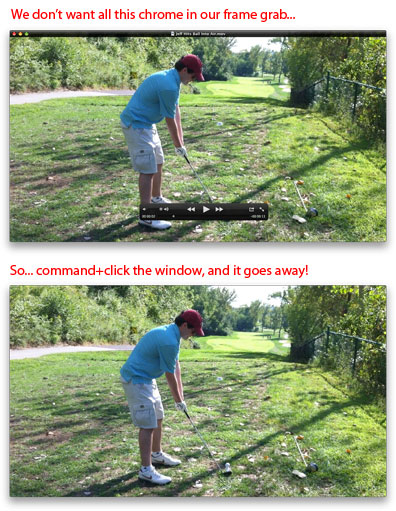
However, I'm glad I finally figured out how I can grab one frame from a movie in QuickTime Player X. The problem I was having is this: If you pause the video and use the left/right arrow keys to move the playhead exactly to the frame you want, the player controls are still showing over the video (in addition to the video title bar/window chrome.
If you take a screen grab of the player, those elements will be on top of your video still frame.
To get rid of those elements, and capture one frame of your video as an image, do the following:
- Hold down the Command key, and click on the video (while it's paused on the frame you want).
- Press Command + Shift + 4 (in combination), then the Spacebar (the cursor should change to a camera). (**Note**: On macOS High Sierra and later, you can press Command + Shift + 5 instead, and select the 'Capture Window' option.)
- Click on the video window to take a screenshot of just that window. It will be saved to your Desktop.
In picture form (for the visually inclined):
Comments