Secure Your Files: Create an Encrypted Disk on Which to Store Private Files
This post is more than 10 years old. I do not delete posts, because even old information is still useful, but please know that some material on this page may be outdated or incorrect. Thanks!
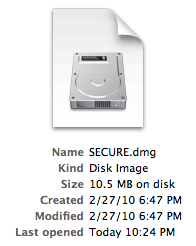
I have created a 'Secure Disk Image' (.dmg file) using Apple's Disk Utility (built into Mac OSX) that uses a password and 128-bit encryption for any files stored inside. I simply store that .dmg file on my Dropbox (or whatever other shared folder/system I'm using), and when I need a file inside, I open the .dmg file and grab the file, then when I'm finished, I eject the drive.
Here's how you can make your own encrypted .dmg file:
- Open Disk Utility (in Applications>Utilities)
- Click the 'Image' menu, select 'New' and choose 'Create Image...'
- In the window that pops up, choose what size you want (you can choose 'custom' if you want and enter whatever amount of space you'll need), make sure 'AES 128 (recommended)' is selected next to "Encryption:", make sure "Format:" is 'read/write'
- Type in a name, select a location (anywhere on your HD), then click the 'Create' button
- The image will be created (as a file), and a virtual 'drive' (white thing) will mount on your Desktop. Copy files you want protected onto this 'drive', and when you are finished (and want it password protected), drag the white 'drive' from your Desktop to the trash
- Every time you want to re-access the files, double click on the disk image wherever you created it, and it will ask you for your password and then mount the white 'drive' on your desktop
Note: Always make sure you eject the disk image when you're finished, or you could possibly mess up the synchronization of the disk image from computer to computer.
Comments