Post Photos/Images to Your Drupal Site from the iPad
This post is more than 10 years old. I do not delete posts, because even old information is still useful, but please know that some material on this page may be outdated or incorrect. Thanks!
Now that I have effectively replaced my laptop with an iPad, I need an easy/quick way to post a photo or two from my iPad to my blog. I use Photogene as a simple Photoshop replacement on the iPad (it actually works pretty well, for being limited to 256 MB of RAM and a 1024x768 display).
I originally tried using an FTP program to transfer the file to my website, into a drop box folder I created, but FTPWrite, one of the very few FTP apps for the iPad, doesn't support uploading from my photo library. Not wanting to pay for any more weak FTP editors until Coda or something equivalent is released for the iPad, I decided to go about this task in a rather unorthodox way. Here's how I post photos to my Drupal site from my iPad:
Prerequisites
On your iPad:
- Dropbox - This app/service allows (free or for pay) you to upload a photo from your library and quickly grab a link to the uploaded file (you'll need to make sure you use the 'Public' folder—other folders will throw a 405 HTTP error... but I'm getting ahead of myself).
- Safari - But you already have this. No worries.
On your Drupal site:
- FileFile + ImageField - set up an imagefield on one of your content types, as you normally would.
- FileField Sources - An excellent module which will allow you to import an image from a remote URL.
Posting the Image
Here's how you get a photo from your iPad to your Drupal site (on any kind of content type)—this presumes you have a photo on the iPad already (I'm not going to cover getting the photo from your camera or iPhone to the iPad's photo library—all you need is the iPad Camera Connection Kit).
- Open up Dropbox on your iPad, and navigate to the 'Public' folder.
- Tap the little '+' icon at the bottom of the file list, and click the button to add an 'Existing Photo or Video.'
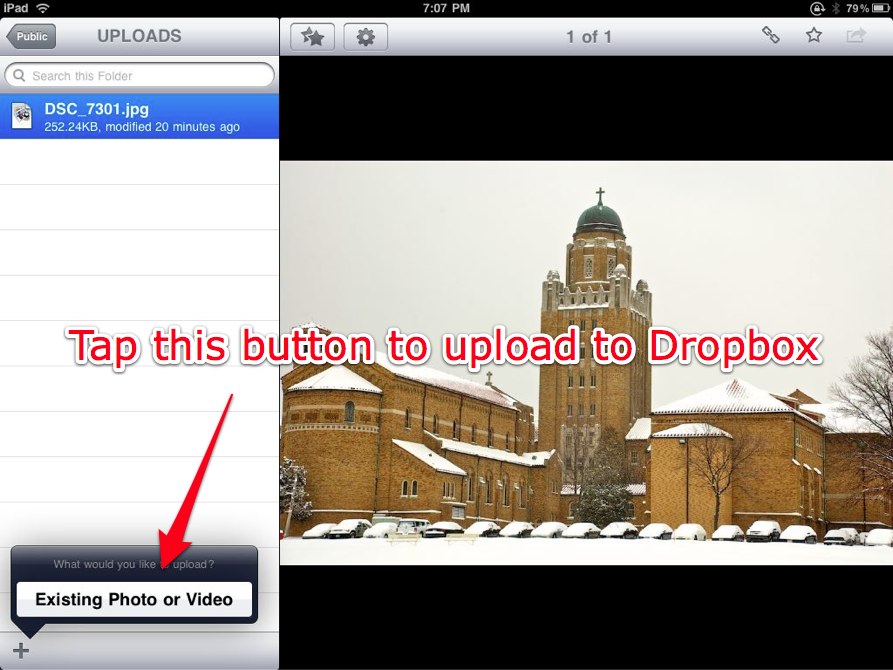
- Select the photo you'd like to upload, and wait for it to upload.
- Tap the photo you just uploaded, then tap the 'link' icon, and select "Copy Link to Clipboard."
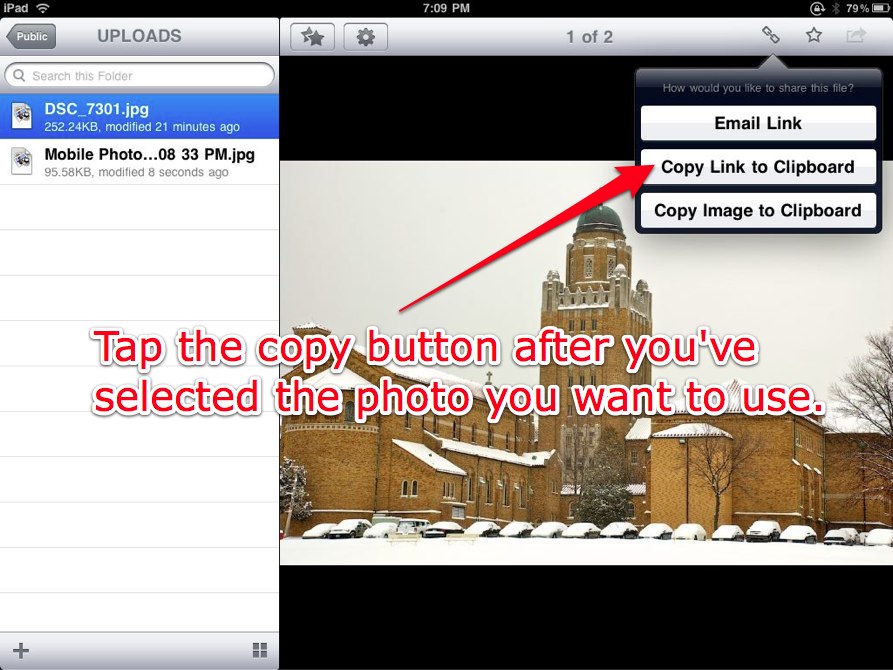
- Now switch over to Safari, visit your Drupal site's content type with the ImageField / FileField Sources.
- Tap on 'Remote URL,' and tap in the URL field. Tap once again to paste the URL you copied from Dropbox, then click 'Transfer' to put the file on your Drupal site.
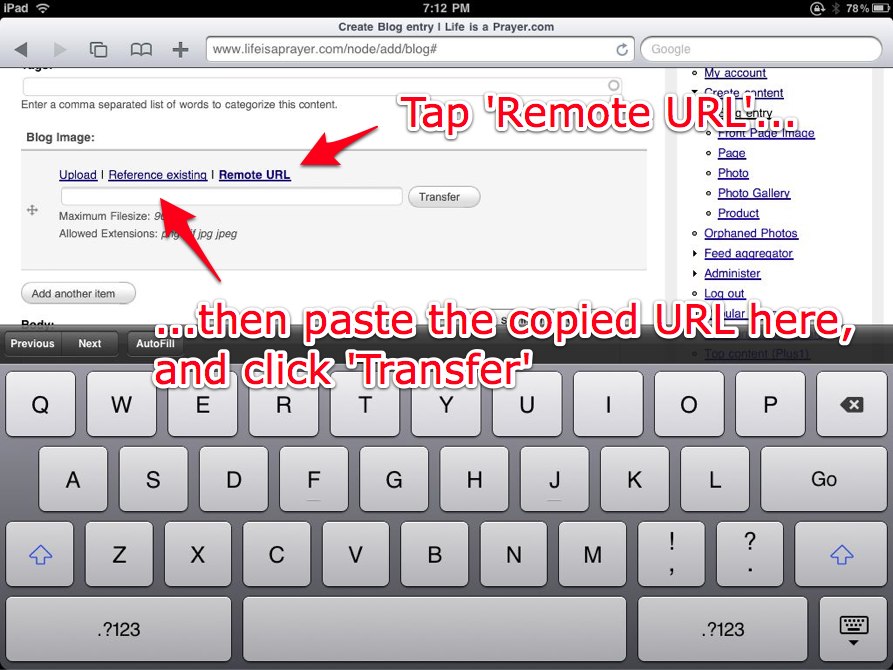
That's it! You have successfully beaten Mobile Safari's file uploading limitations, albeit in a less-than-ideal fashion. Someday Mobile Safari might simply allow for direct file uploads, in which case, steps 1-4 could be taken out of the process. Bu don't hold your breath :-/
Comments